Stage display
The stage display is a second screen for the people at the front: the band, the singers or the preacher. The audience never sees it. It can show the words on screen now, what comes next, the speaker’s notes, the time, a service timer and short messages from you.
Set up the stage screen
The stage display needs its own screen, such as a monitor or TV facing the stage.
- Connect the screen to the Mac.
- Open Settings › Outputs.
- Under Displays, set the projector to Audience and the stage screen to Stage display.
If you connect two extra screens, LumenStage makes the first one Audience and the second Stage display by itself. You can change this at any time.
To see the stage display on your own Mac, choose Window › Stage Display Preview. This is handy for checking the layout without walking to the stage.
Choose and edit the layout
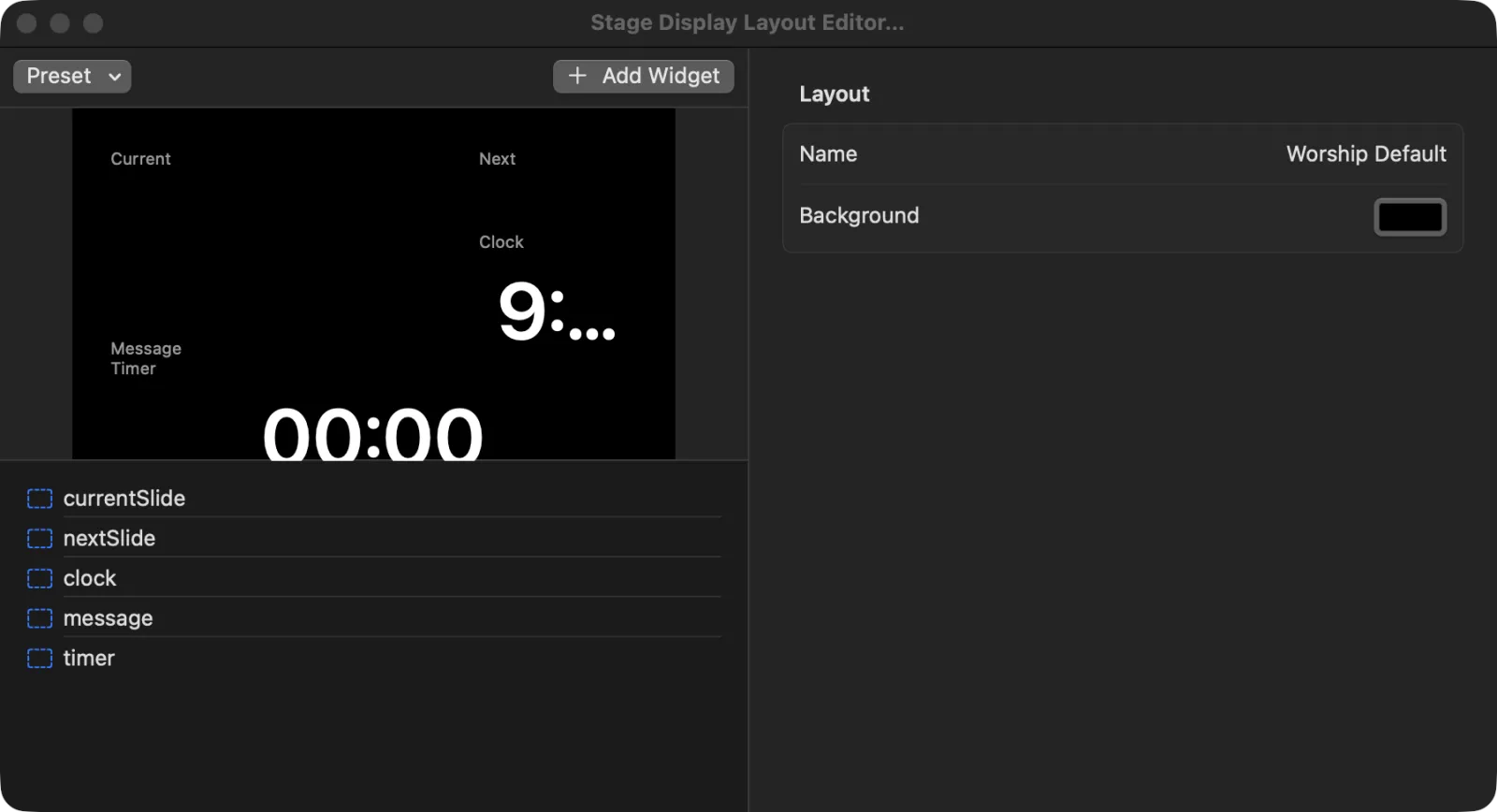
Choose Live › Stage Display Layout Editor…. The editor shows a preview of the stage screen at the top left, the list of items (widgets) below it, and their settings on the right.
Start from a preset
Click Preset and pick one:
- Worship Default — the current slide, the next slide, a clock, messages and the timer.
- Pastor Sermon — large sermon notes, the current slide, the timer and a clock.
- Singer Lead — big lyrics, the next slide and a clock.
Change a widget
- Click a widget in the list.
- On the right, change:
- Kind — what it shows: the current slide’s text, the next slide’s text, the current slide’s notes, a clock, the timer, the message, the Bible reference on screen, the presentation’s name, or the logo.
- Label — the small title shown with it.
- Font — the Size and Colour of its text.
- Position — X, Y, Width and Height, as sliders from left to right and top to bottom of the screen.
- Watch the preview update as you go.
To add a widget, press Add Widget. To remove the selected one, press Remove Widget.
When no widget is selected, the right side shows the Layout settings: its Name and Background colour.
Your changes are kept automatically.
Tip: The Notes you type on a slide’s Slide tab appear in a notes widget. This is a good place for sermon points or cues for the band.
Send a message to the stage
Sometimes you need to tell the speaker “5 minutes left” without the room seeing it.
From the live controls:
- Click the Message to stage… box at the bottom of the window.
- Type your message.
- Press Return or Send.
- A confirmation says “Shown on the stage display”. The live controls show “On stage:” followed by your message.
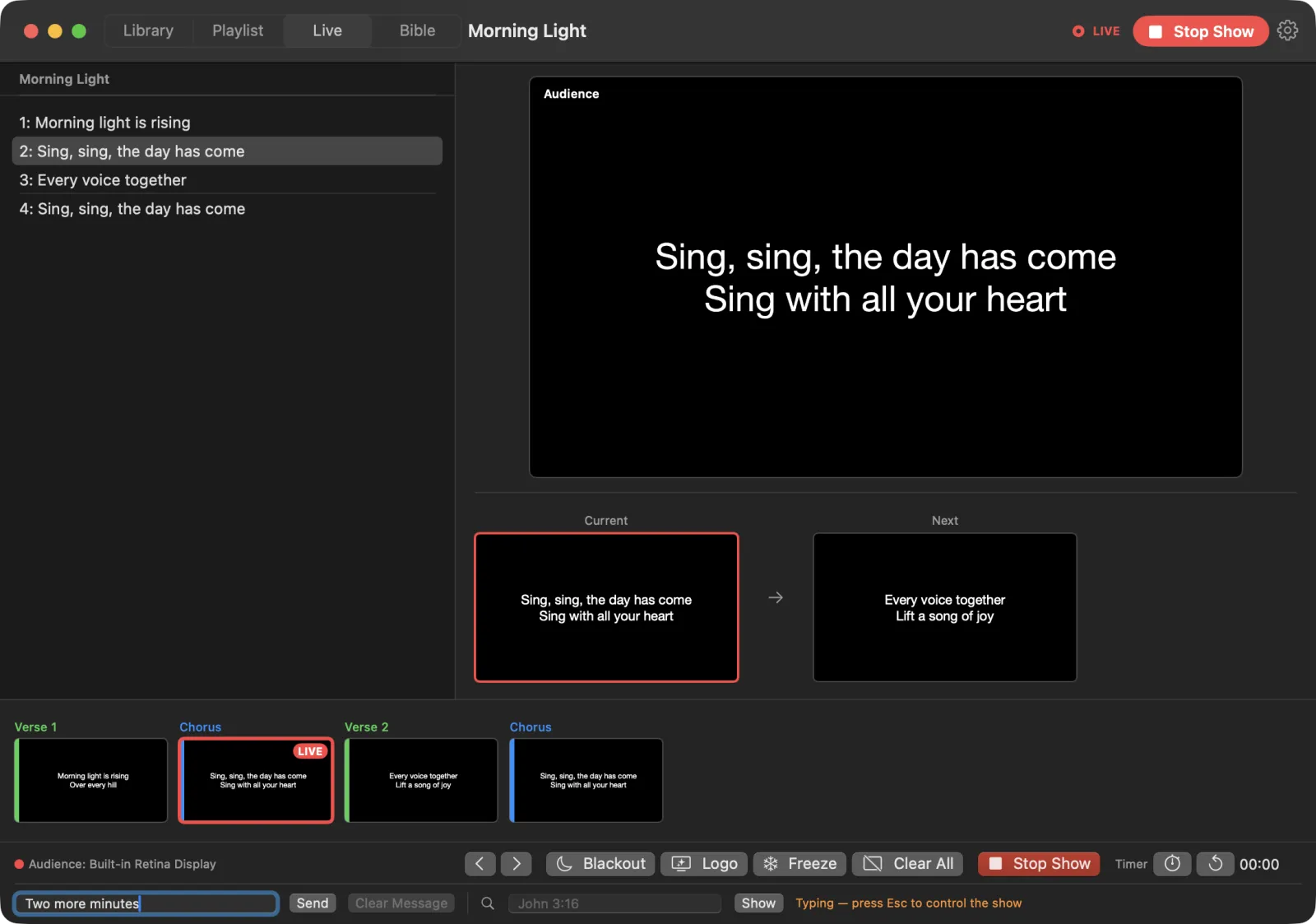
To remove it, press Clear Message.
After typing, press Esc to give the keyboard back to the show, so Space and the arrow keys move slides again.
The Messages window
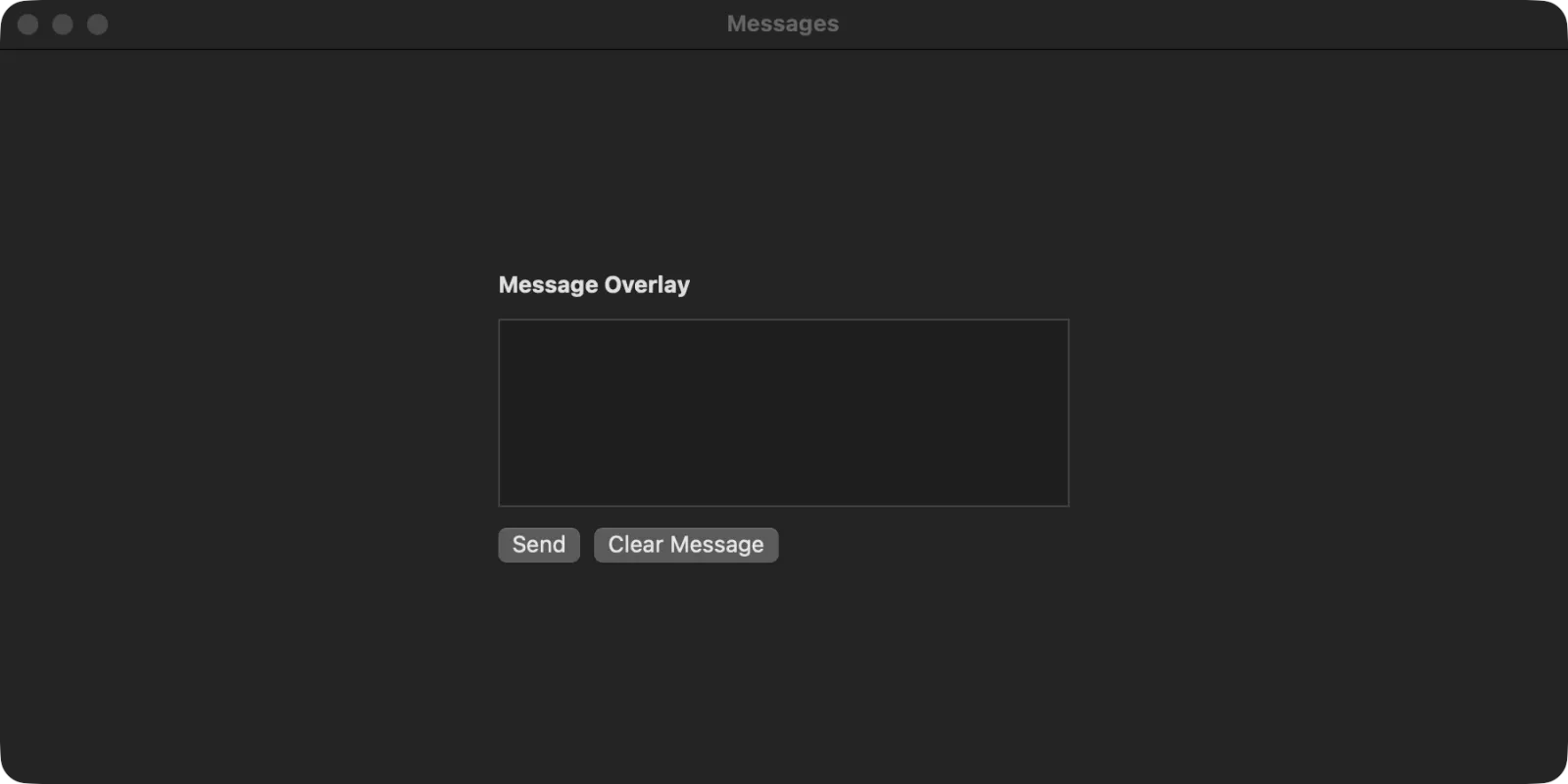
For longer messages, choose Window › Messages. The Message Overlay window has a bigger text area.
- Type your message.
- Press Send. The window shows Showing while the message is on the stage display.
- Press Clear Message to take it off.
A message item in a playlist works the same way: during the show, click it in the Live screen’s list to send its text to the stage display.
The service timer
The timer counts up from 00:00, so the speaker can see how long they have been going. It shows on the stage display (in layouts with a timer) and at the bottom of the main window while it runs.
From the live controls, next to Timer:
- Start Timer starts it.
- Pause Timer pauses it. Resume Timer carries on from where it stopped.
- Reset Timer sets it back to 00:00.
The Timers window
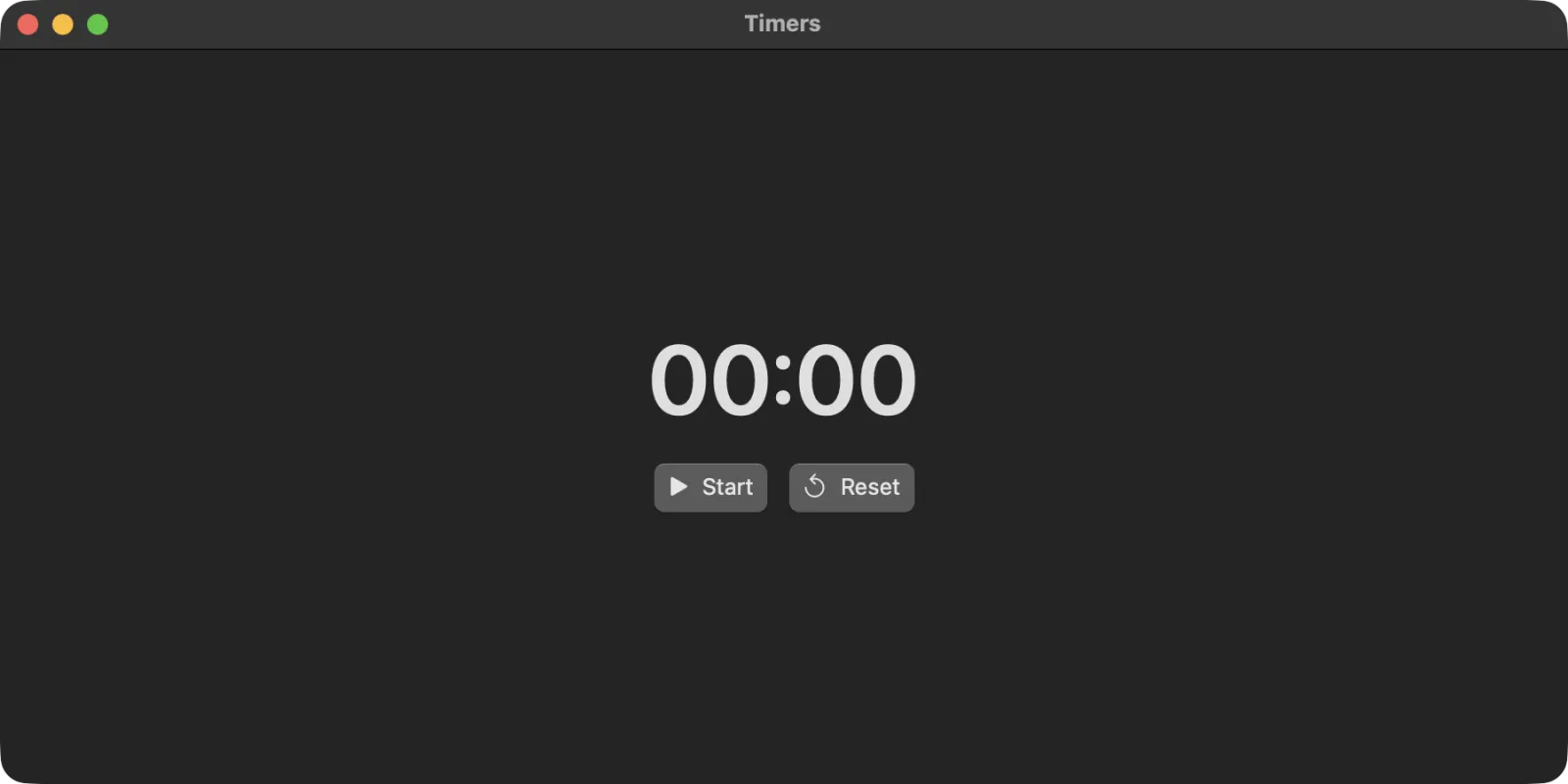
For a big, easy-to-read timer on your own screen, choose Window › Timers. It shows the time in large numbers with Start, Pause or Resume, and Reset buttons.
Tip: Start the timer when the sermon begins, and send a stage message such as “5 minutes” when it is time to finish.