Playlists
A playlist is the running order of a service: the songs, Bible readings and notes, from start to finish. On Sunday you press one button and go through it in order.
Make a playlist
- Click Playlist at the top of the window.
- Press New Playlist, or choose File › New Playlist (⇧⌘N).
- A new playlist called “Untitled Playlist” appears in the list on the left. It is dated today.
- Type a name in the box at the top, for example “Sunday 10 am”.
- To change the date, click the date button next to the name and pick the day of the service in the calendar.
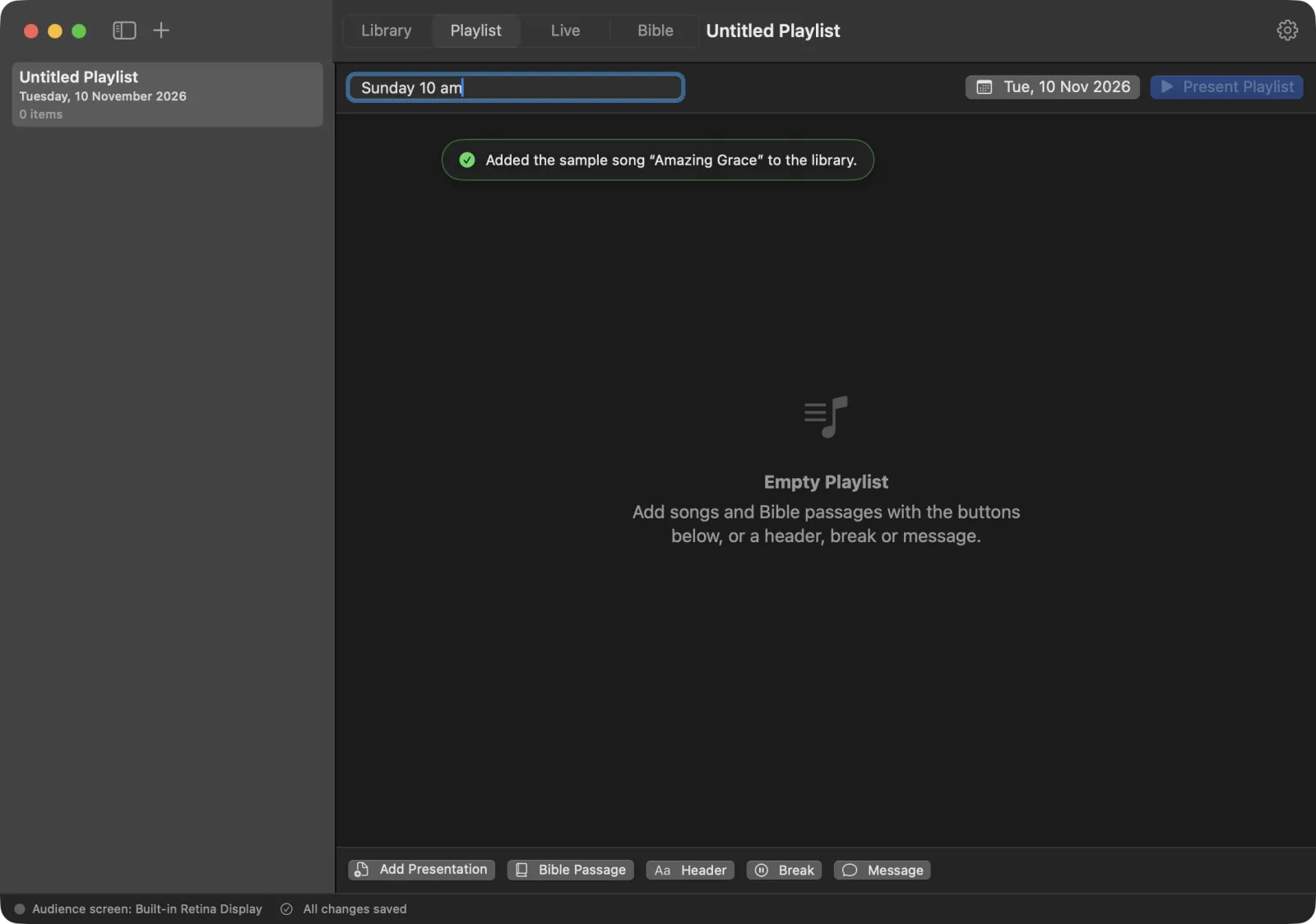
The list on the left shows all your playlists with their date and how many items they have. Click one to open it. To delete a playlist, right-click it and choose Delete.
Add songs and presentations
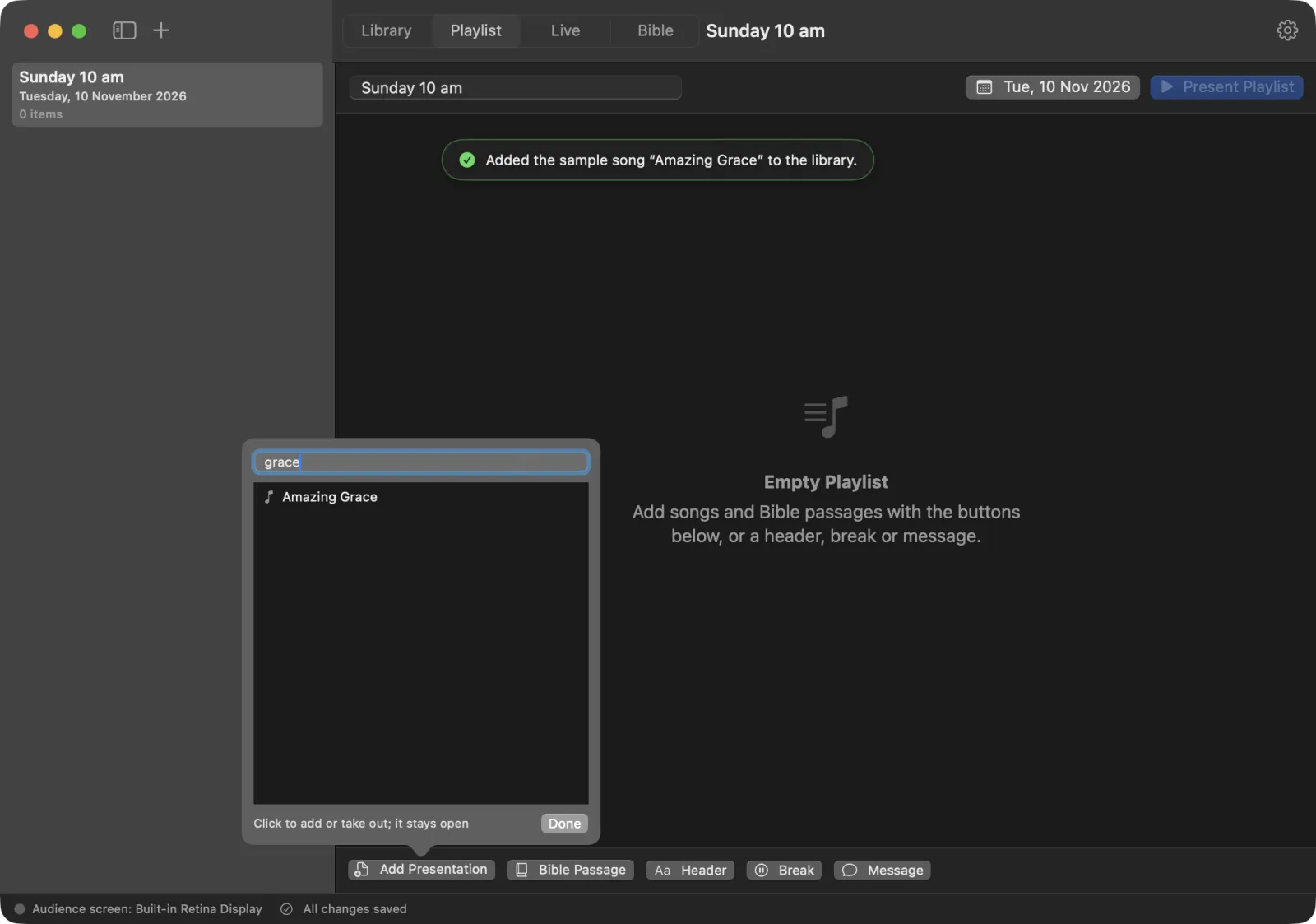
- Press Add Presentation at the bottom.
- A list of your library opens. Type in Search… to find a song quickly.
- Click a song or presentation to add it to the end of the playlist. A tick shows it is in the playlist. Click it again to take it out.
- Add as many as you need. The list stays open.
- Press Done.
You can also add a presentation from the library: right-click it on the Library screen and choose Add to Playlist.
Add a Bible passage
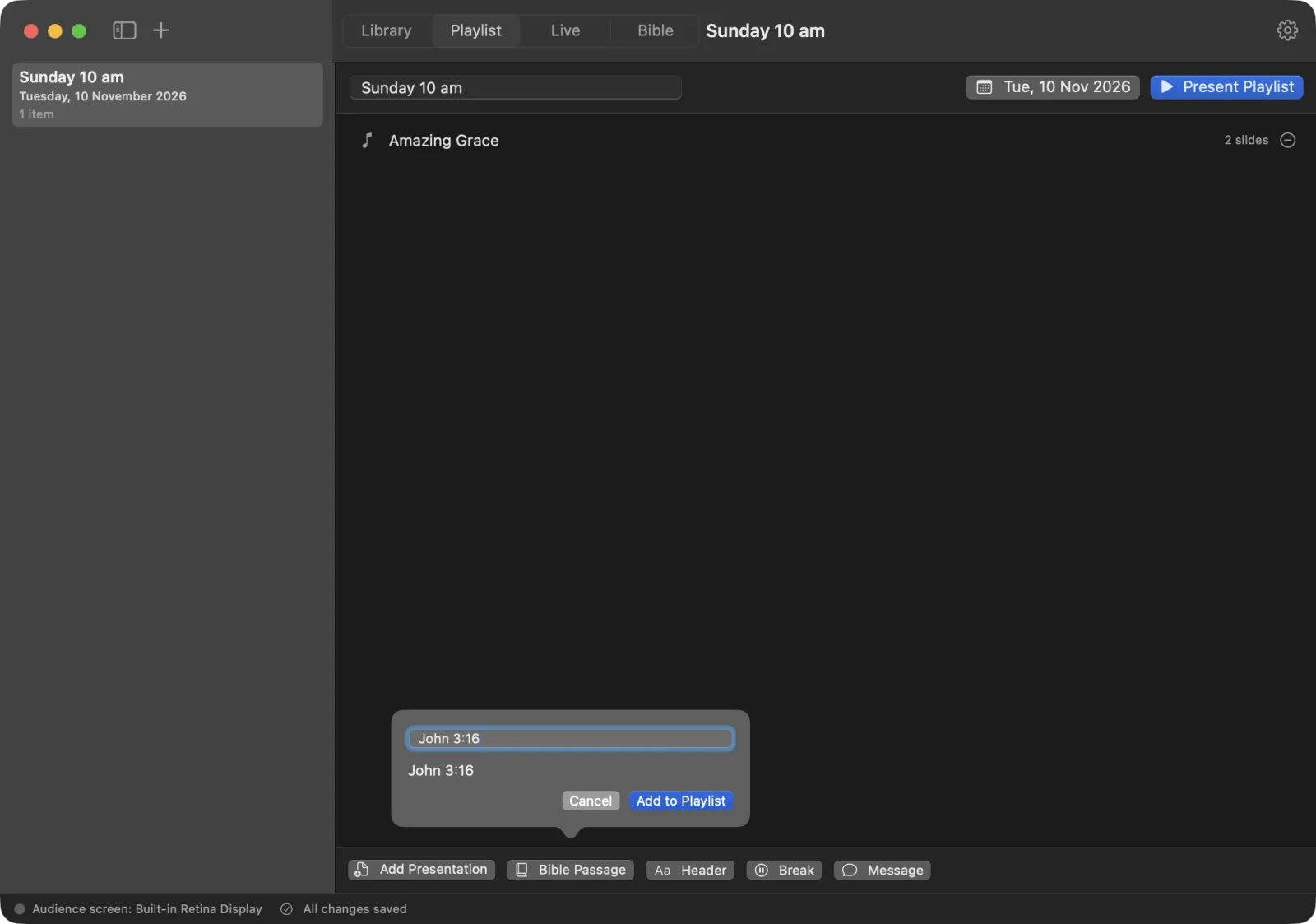
- Press Bible Passage.
- Type a reference in Reference, for example
John 3:16-18orPsalm 23. - Press Add to Playlist.
If the reference isn’t right, the window says “Not a reference this Bible knows”. Check the book name, chapter and verses. The passage uses the primary translation chosen in Settings › Bible.
If no Bible is installed, the window offers Open Settings so you can add one.
Headers, breaks and messages
The other buttons at the bottom add notes to the running order:
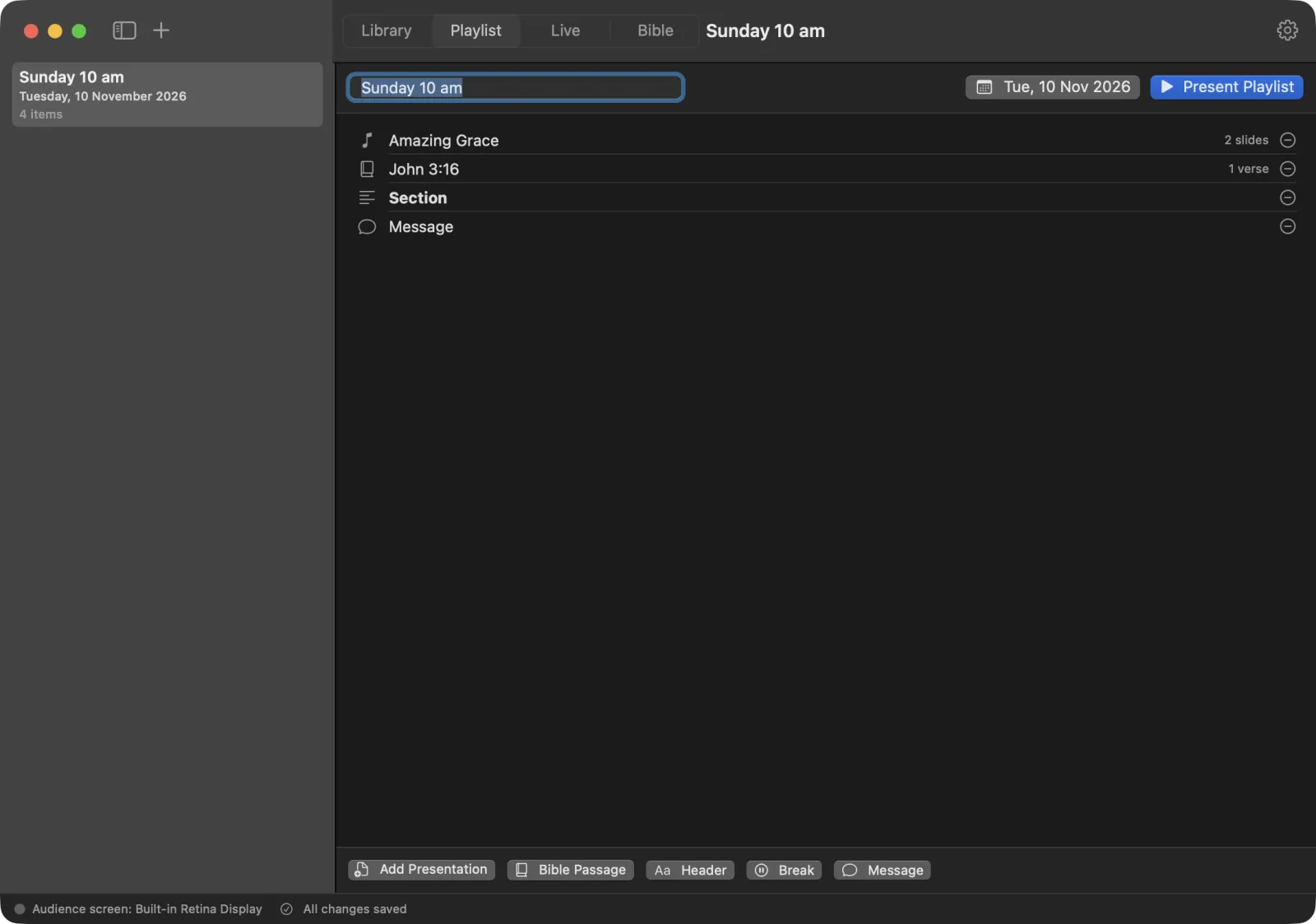
- Header adds a section title, such as “Worship” or “Sermon”. It starts as “Section”.
- Break marks a pause in the service.
- Message adds a short text. It starts as “Message”.
To change the text of a header or message, double-click it, or right-click it and choose Edit…. Type the new text and press Done.
During the show, headers and breaks are labels in the list to help you keep your place. Click a message in the Live screen’s list to show its text on the stage display.
Change the order or remove items
- Drag an item up or down to move it.
- To remove an item, click the minus button at the end of its row, or right-click it and choose Remove from Playlist. The song stays in your library.
Double-click a song in the playlist to open it in the editor, for example to fix a typo before the service.
Run the service
- Open the playlist.
- Press Present Playlist.
- The first song or passage goes on the projector and the Live screen opens.
- The left side of the Live screen lists the playlist. Click any song or passage to put its first slide on screen.
Moving through the service is simple:
- Press Space or → to go to the next slide.
- On the last slide of a song, press → again. The next song or Bible passage in the playlist opens and its first slide goes on screen. Headers, breaks and messages are skipped.
- Press ← on the first slide of a song to go back to the last slide of the one before.
When a song is on its last slide, the Next preview on the Live screen says what comes next in the playlist.
Tip: Build your playlist the day before and run through it once with Present Playlist, with no projector connected. Nothing goes on a second screen, and you can check that every song is there and in order.
See Running the show for all the controls you have while the service is on.