Settings
To open Settings, click the gear button in the top-right corner of the window, or press ⌘,. Settings has seven tabs along the top: Outputs, General, Bible, Remote, Planning Center, Updates and Advanced. Changes take effect straight away.
Outputs
This tab decides which screen shows what.
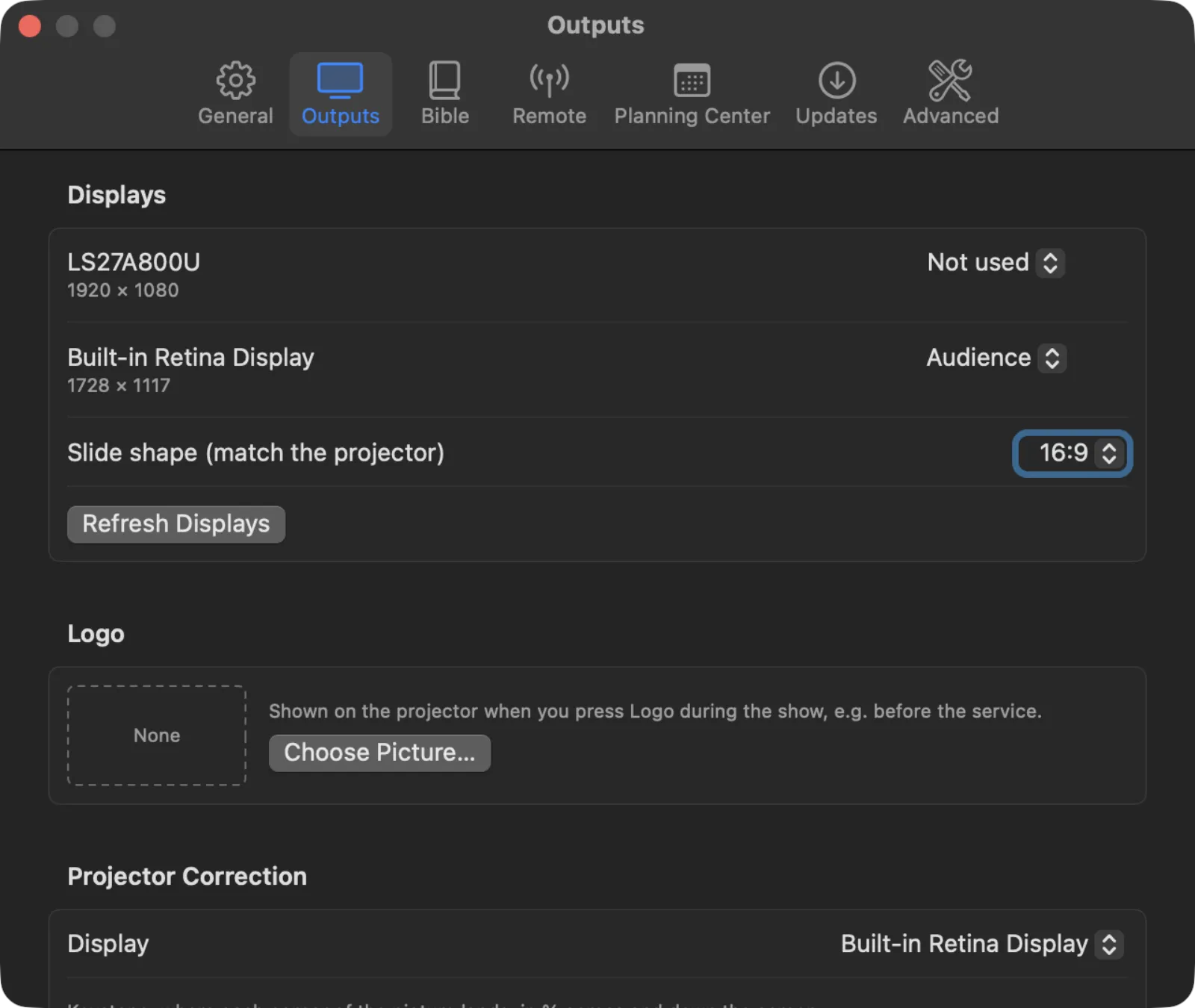
Displays lists every screen connected to the Mac, with its size. For each one, choose:
- Audience — what the room sees (the projector or main TV).
- Stage display — notes and the next slide for the people on stage. See Stage display.
- Not used — LumenStage leaves this screen alone.
If you plug in a projector and it isn’t listed, press Refresh Displays.
Slide shape (match the projector) sets the shape of your slides: 16:9, 16:10, 4:3 or 1:1. Most modern projectors and TVs are 16:9. Older projectors are often 4:3. When the shapes match, the slides fill the whole screen.
Logo is the picture shown when you press Logo during the show, for example before the service starts. Press Choose Picture… and pick a PNG or JPEG file. Press Remove to stop using it.
Projector Correction fixes a picture that isn’t square on the wall. Pick the Display, then move each corner (Top left, Top right, Bottom left, Bottom right) Across and Down until the picture is straight. If two projectors overlap, use the soft-edge sliders (Left edge, Right edge, Top edge, Bottom edge) and Projector gamma to blend them. Reset Correction puts the picture back as it was.
Syphon sends the live output to other apps on the same Mac, such as OBS or Resolume. Turn on Publish Syphon output and give it a Server name. If Status says Unavailable in this build, this copy of LumenStage can’t publish Syphon. Press Detect to check again.
General
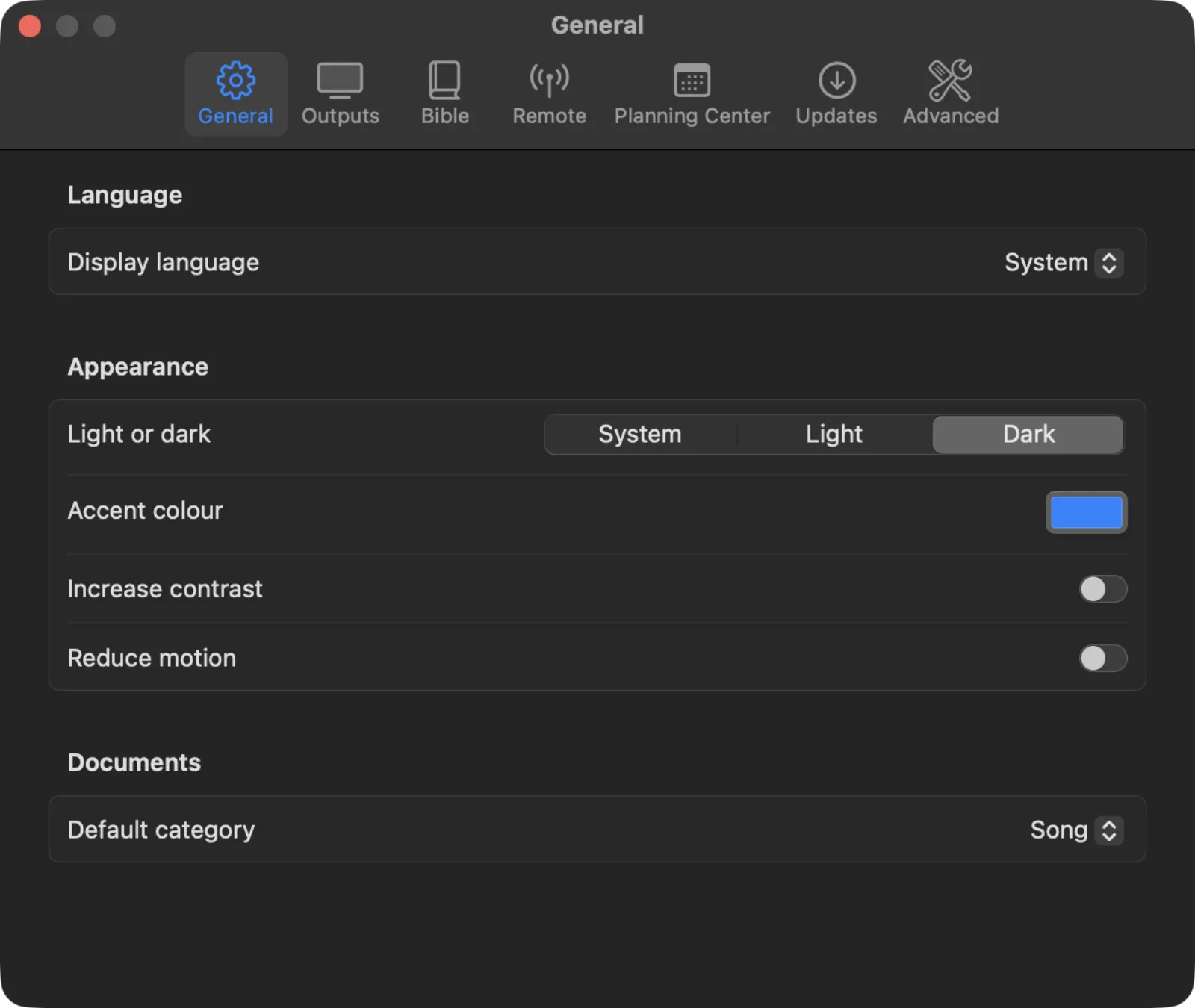
- Display language — the language of LumenStage’s menus and buttons: System (follows your Mac), English, Русский, Українська, Français, Español or Deutsch. After changing it, press Relaunch to restart LumenStage in the new language.
- Light or dark — System, Light or Dark windows.
- Accent colour — the colour of selected items and main buttons.
- Increase contrast — stronger outlines and text, for low vision.
- Reduce motion — fewer animations in the app. The projector is not affected.
- Default category — the category given to new presentations, such as Song or Sermon.
Bible
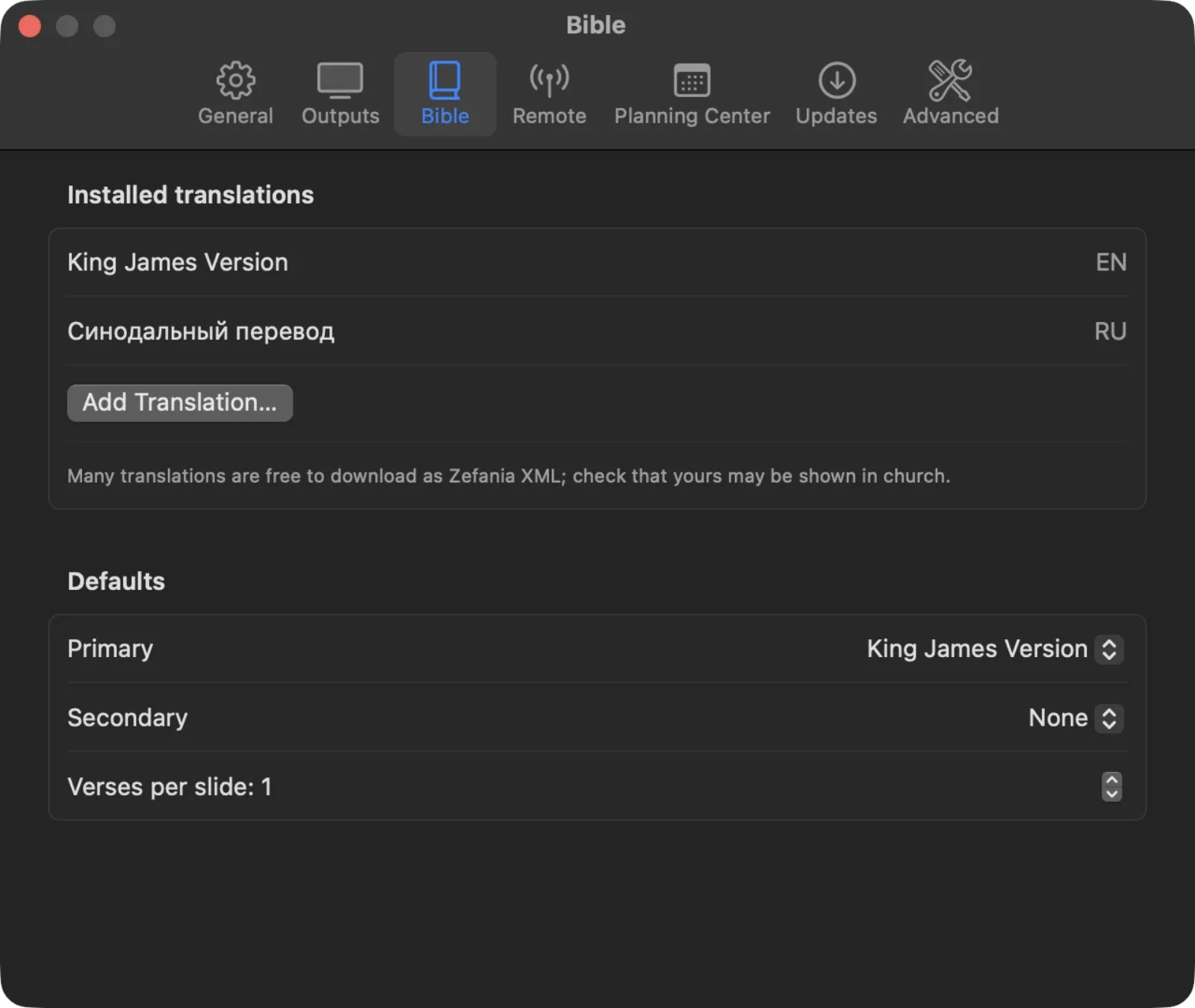
- Installed translations lists every Bible you have. The King James Version and the Russian Synodal translation are built in.
- Add Translation… adds a Bible from a Zefania XML file. A remove button next to an added translation deletes it.
- Primary is the translation shown on the projector. Secondary is a second translation shown under it, or None.
- Verses per slide sets how many verses go on each slide, from 1 to 10.
See Bible verses for more.
Remote
This tab lets other devices control the show: a phone or tablet (Web Remote), lighting desks (OSC), and foot pedals or MIDI keyboards (MIDI).
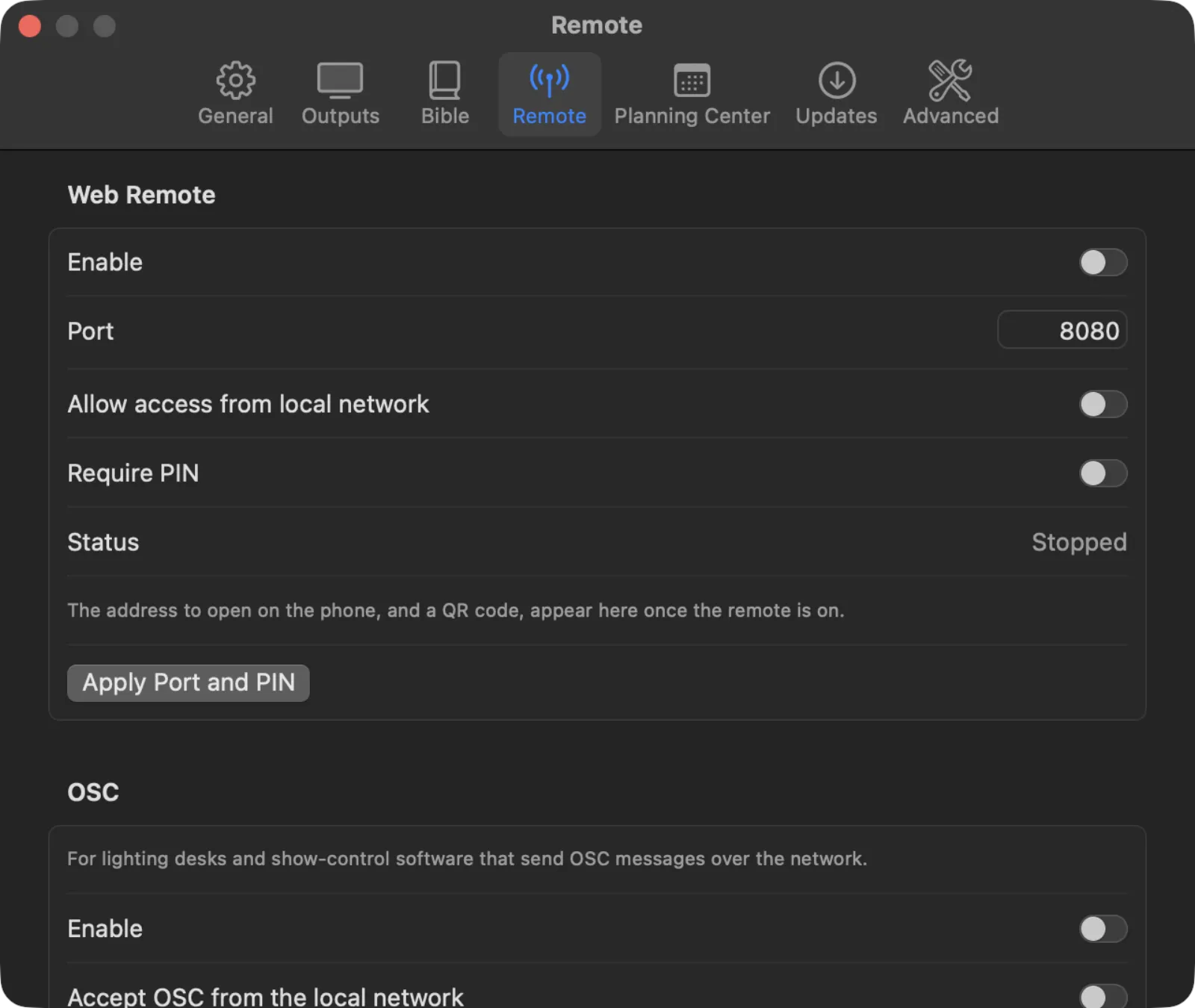
The Status line in each section says Running, Starting… or Stopped. When the web remote is on, its address and a QR code appear here. See Remote control for step-by-step instructions.
Planning Center
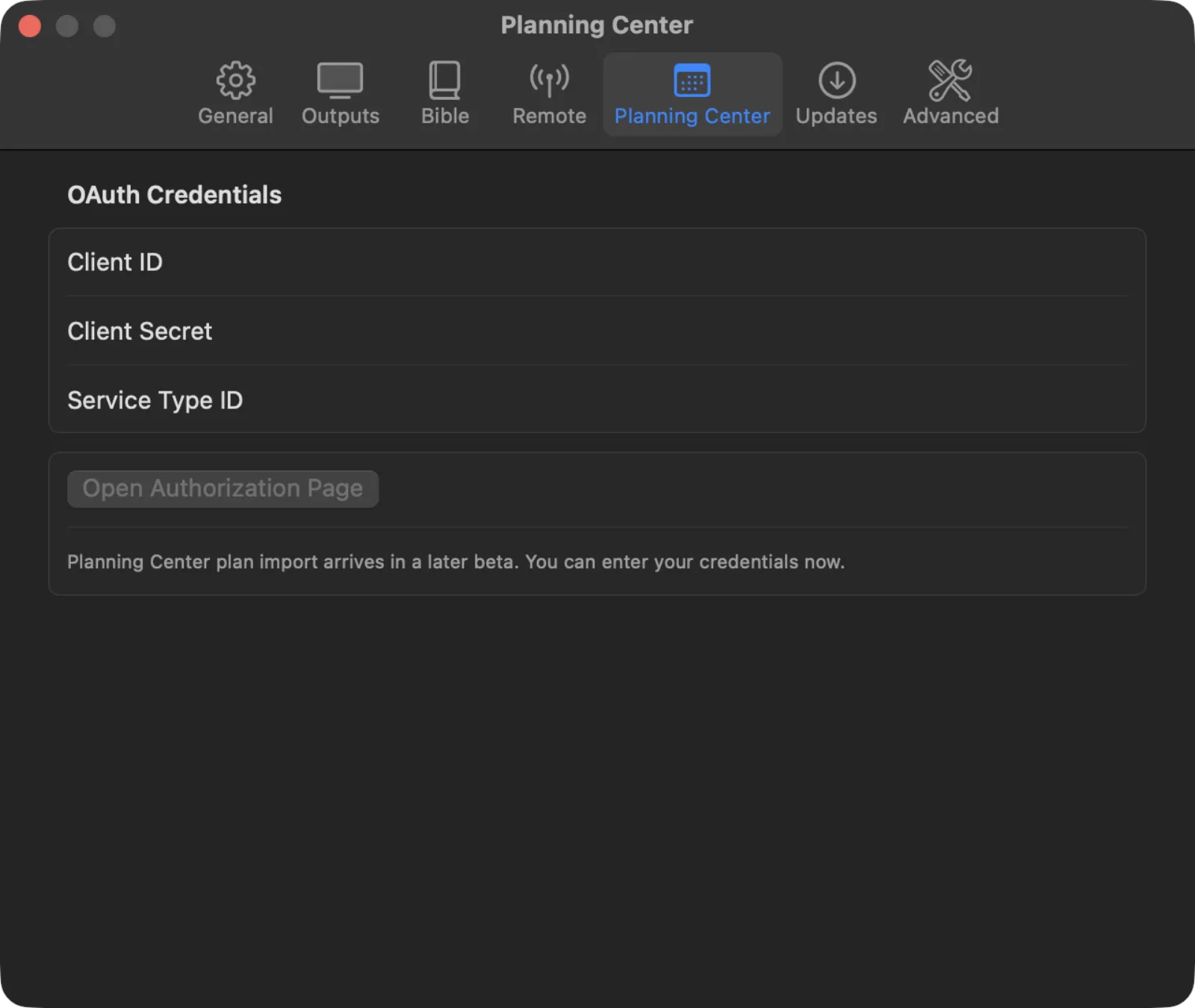
Here you can enter your Planning Center Client ID, Client Secret and Service Type ID. The secret is kept in the Mac’s Keychain, never in a file.
Importing service plans from Planning Center is not available yet. The Open Authorization Page button stays greyed out until it arrives in a later version. You can enter your details now so they are ready.
Updates
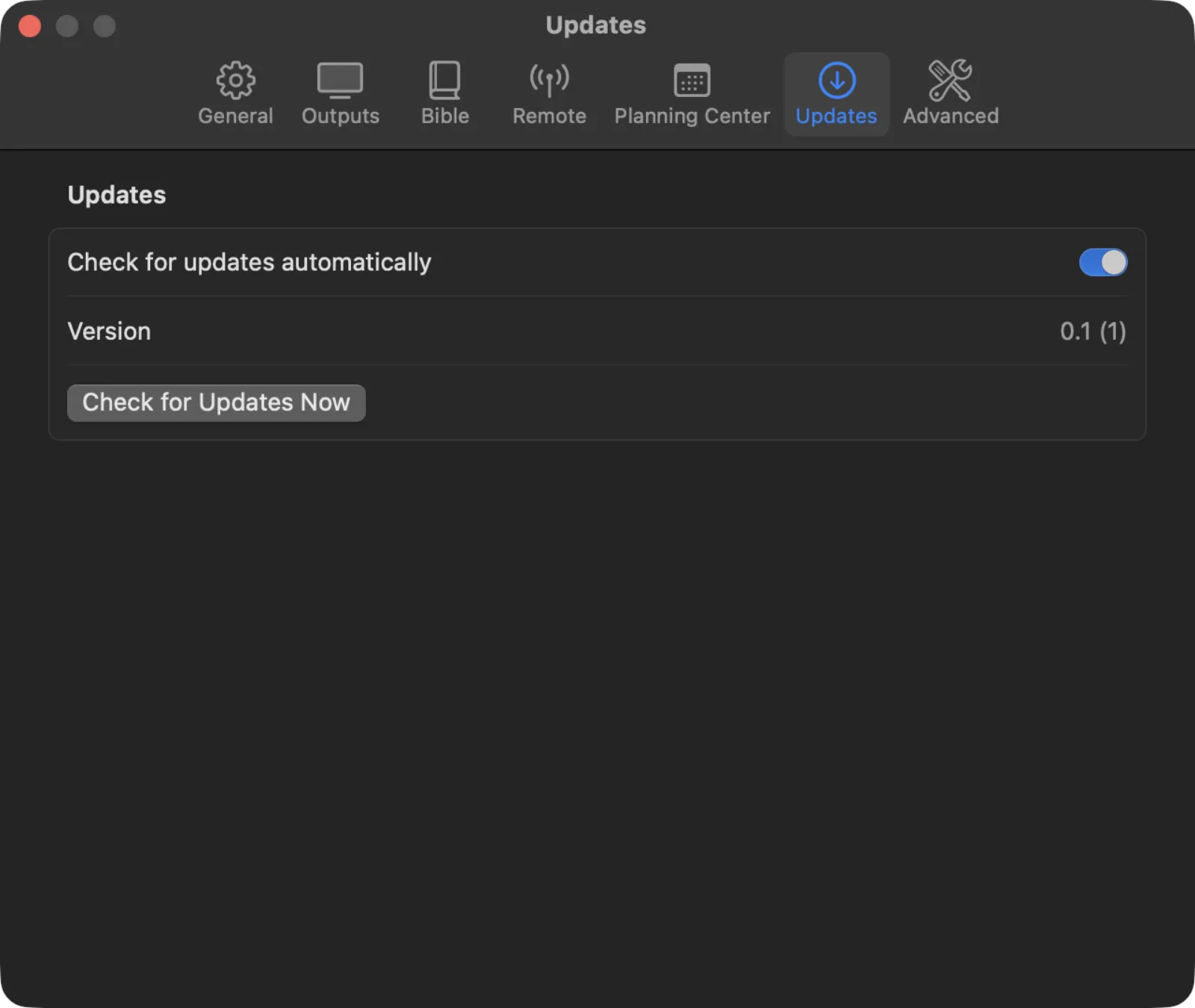
- Check for updates automatically looks for a new version once a day and offers to install it.
- Version shows which version you have.
- Check for Updates Now looks straight away.
Advanced
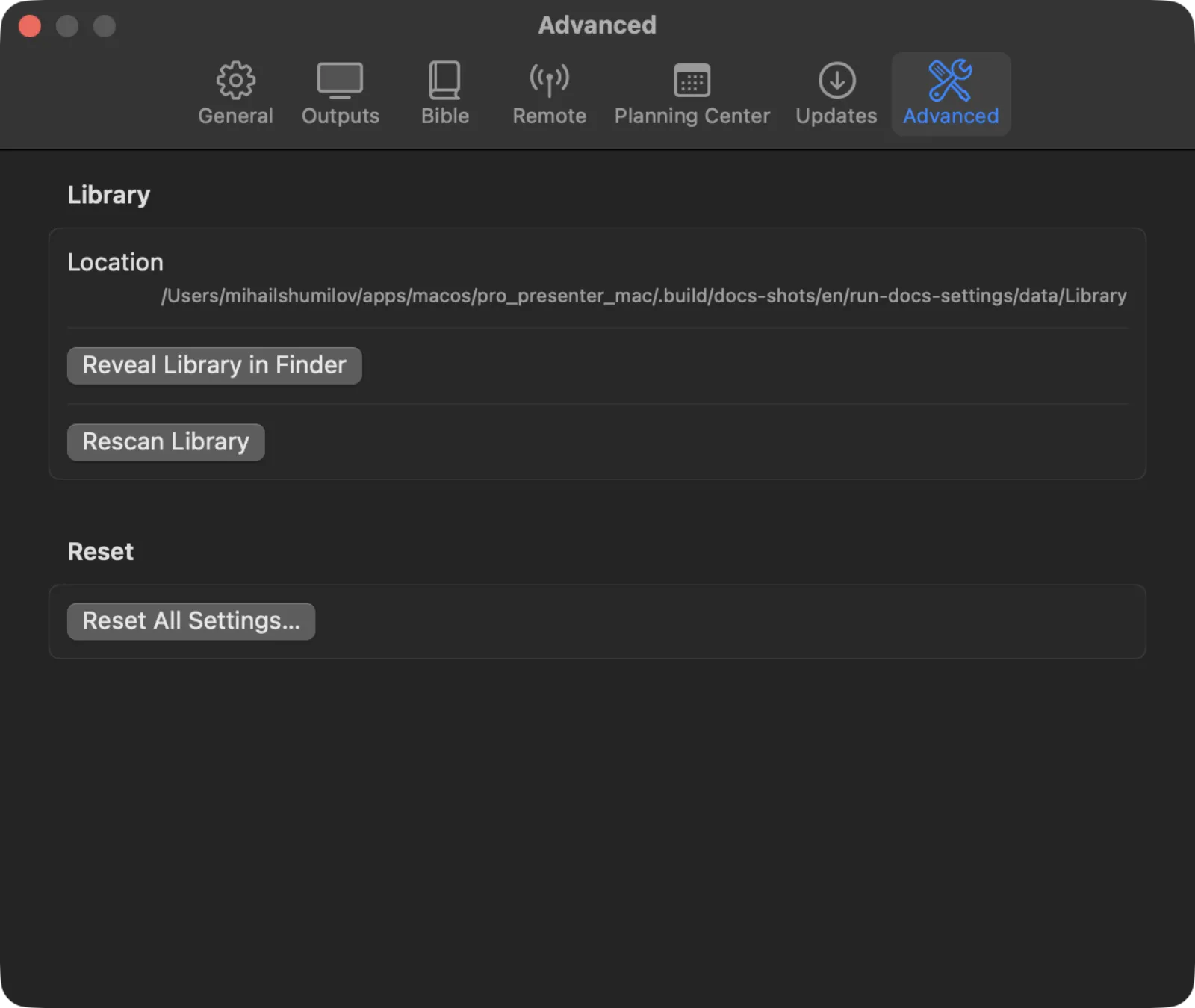
- Location shows the folder where your library is kept.
- Reveal Library in Finder opens that folder.
- Rescan Library looks again for presentations you copied into the folder outside the app.
- Reset All Settings… puts every setting back to how it was at first launch. It asks first. Your presentations, songs and playlists are kept.
Tip: Before resetting, note your display roles, slide shape and logo picture. You will need to set them again.