Library and importing
The library holds every song and presentation you make or import. It is the list on the left of the Library screen.
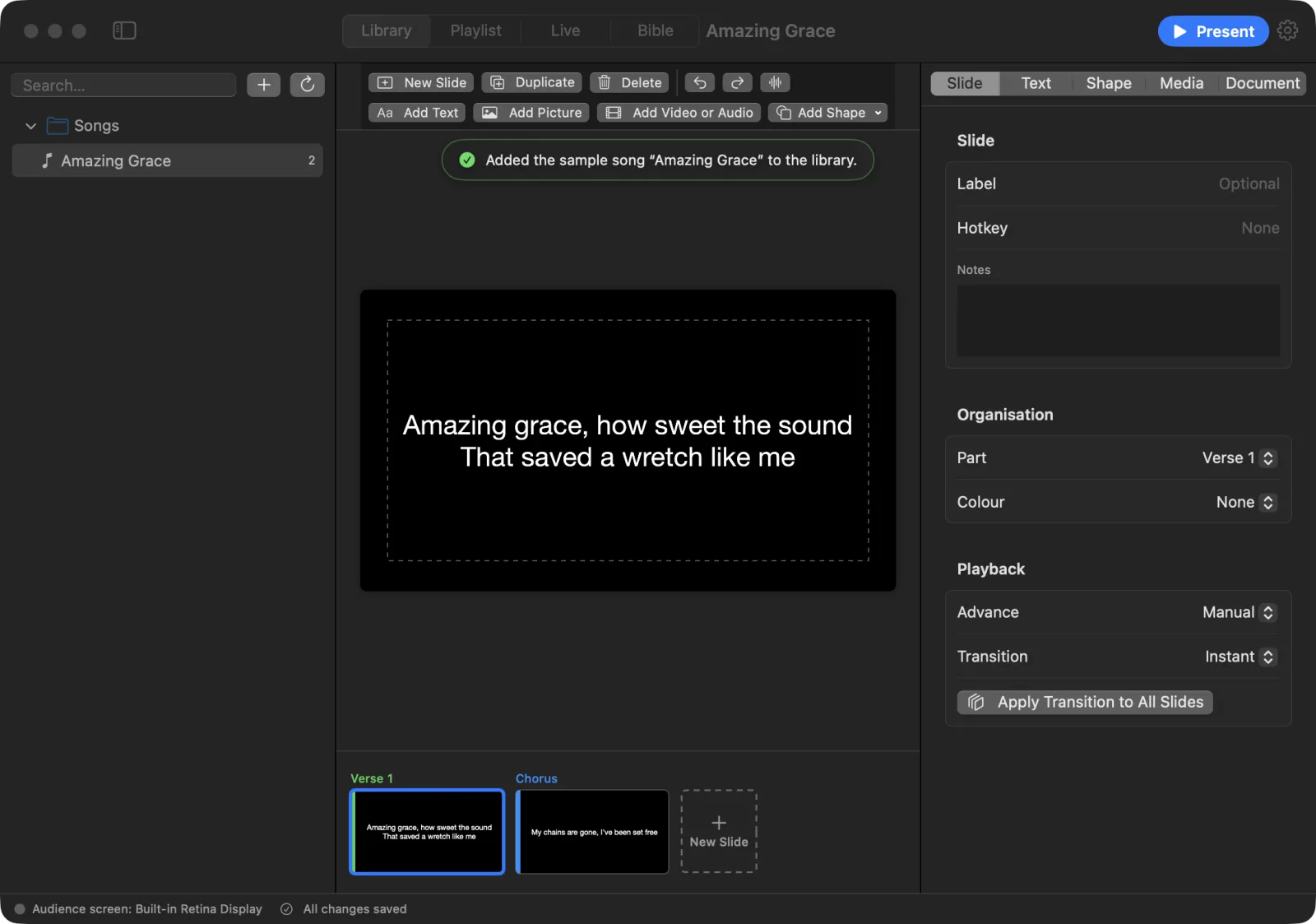
How the library is organised
Presentations are grouped by their Category (Song, Sermon, Announcement and so on), and inside that by folder:
- Songs — songs you make with New Song or New Song from Lyrics….
- Imported — everything you bring in with Import….
- Bible — Bible passages you save with Save as Document.
- New presentations sit at the top of the list, outside any folder.
Click a folder to open or close it. The number on the right of each row is how many slides it has.
To move a presentation to another folder, drag it onto the folder.
Right-click a presentation for more:
- Open
- Add to Playlist — adds it to the playlist you last opened on the Playlist screen. This item appears once you have a playlist.
- Reveal in Finder
- Rename…
- Delete — asks first, then removes the presentation.
Tip: To hide the library and give the slide more room, choose View › Toggle Library Sidebar (⌃⌘S).
Search the library
- Click the Search… box at the top of the library.
- Type part of a title or a few words from a song.
- The list shows only what matches. Clear the box to see everything again.
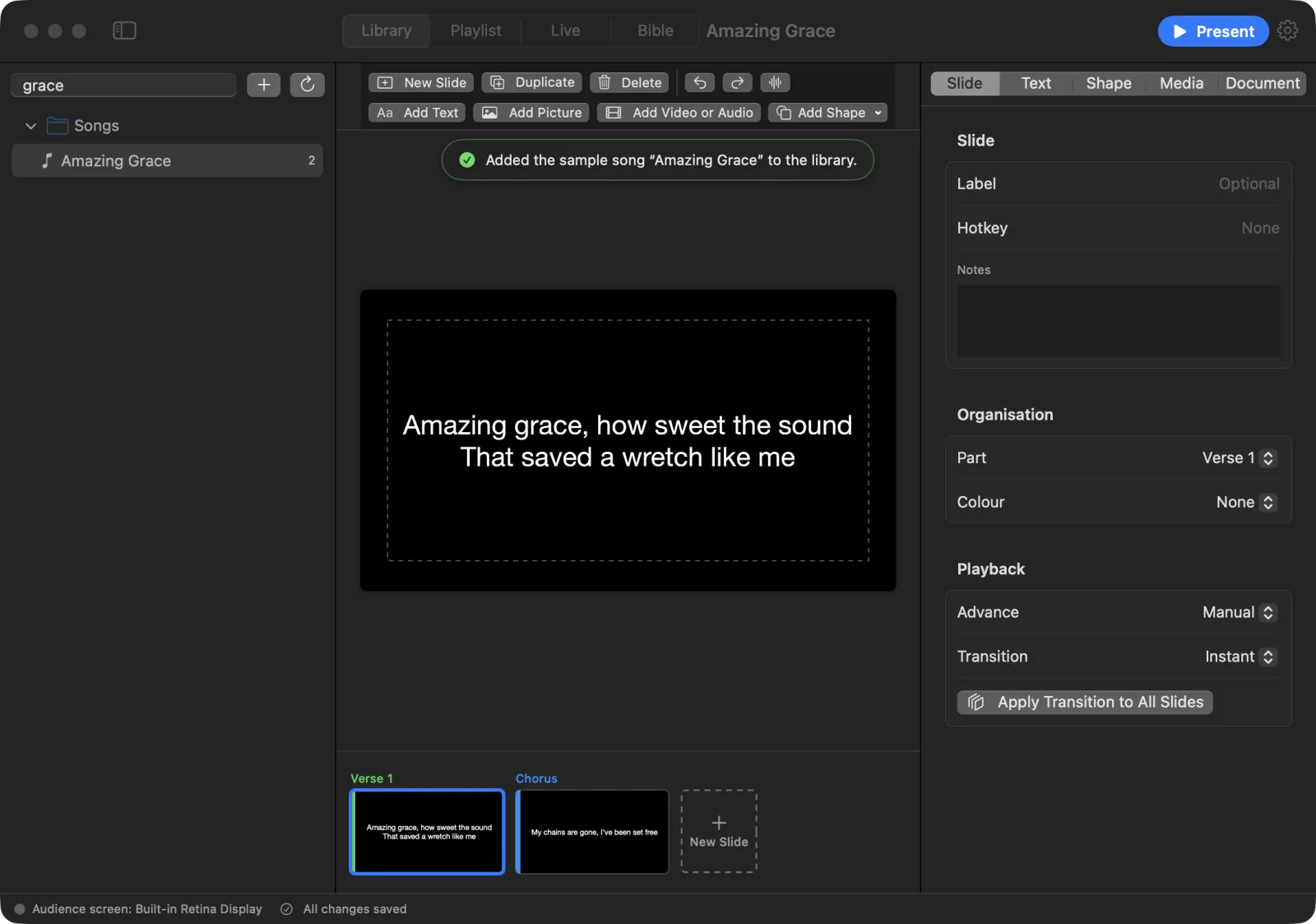
To search the words inside the open presentation instead, choose Edit › Find… (⌘F). A find bar appears above the slide with Previous match and Next match buttons.
Add something new
Click the + (Add) button next to the search box. It offers:
- New Song
- New Presentation
- New Song from Lyrics…
- Import…
The button next to it re-scans the library. Use it if you copied presentations into the library folder outside the app.
Import from other programs
To import files:
- Choose File › Import…. You can also use Help › Import from ProPresenter, Keynote or PowerPoint….
- Select one or more files and press Import.
- A message says how many presentations were imported. They go into the Imported folder.
You can also drag files from Finder onto the LumenStage window.
LumenStage can import these files:
| Program | File types |
|---|---|
| ProPresenter 7 | .pro presentations, .proplaylist playlists |
| ProPresenter 6 (and 5, 4) | .pro6, .pro5, .pro4 presentations, .pro6plx playlists |
| Keynote | .key (Keynote ’09 and newer) |
| PowerPoint | .pptx, .pptm, .ppsx, .ppsm |
| OpenLP | .openlp, .openlpsong, .osz |
| OpenSong | .xml, .opensong |
| CCLI SongSelect | .ccli |
| Plain text lyrics | .txt |
When you import a ProPresenter playlist, its songs go into the library and the running order becomes a playlist. If the playlist file names songs it doesn’t contain, a message tells you how many were left out.
Plain text files are split into slides the same way as New Song from Lyrics…: a blank line starts a new slide and a heading like Chorus starts a new part.
Tip: Older PowerPoint
.pptfiles can’t be imported. Open them in PowerPoint or Keynote and save them as.pptxfirst.
If a file can’t be read, the message names it and gives the reason.
Back up and restore the library
Back up before a big change, or to move your library to another Mac.
To back up:
- Choose File › Backup Library….
- Pick where to save. The backup is a single
.zipfile, named “LumenStage-Library.zip” unless you change it.
To restore:
- Choose File › Restore Library….
- Pick the backup
.zipand press Restore. - A message says how many items were restored.
Export slides as pictures
To save each slide of the open presentation as a picture:
- Open the presentation.
- Choose File › Export Slides as Pictures….
- Pick a folder and press Export Here.
Each slide is saved as a PNG picture, 1920 × 1080 pixels.
CCLI report
If you fill in CCLI details for your songs, choose File › Export CCLI Report… to save a song usage report as a CSV file. See Songs and lyrics for how songs are counted.