Getting started
LumenStage puts song lyrics, Bible verses and slides on the projector at church. This page helps you install it, make your first presentation and learn where everything is.
What you need
- A Mac with macOS 14.4 (Sonoma) or later.
- A projector or TV connected to the Mac, if you want the room to see your slides. You can practise without one.
To install LumenStage, open the downloaded disk image and drag LumenStage into your Applications folder. Then open it from Applications or Launchpad.
The first launch
The first time you open LumenStage, a window says Welcome to LumenStage and asks How would you like to get started? Pick one of three cards:
- Start Fresh begins with an empty library.
- Try a Sample adds a sample song, so you have something to explore.
- Import… lets you bring in files you already have, such as ProPresenter, Keynote or PowerPoint presentations. See Library and importing for the full list.
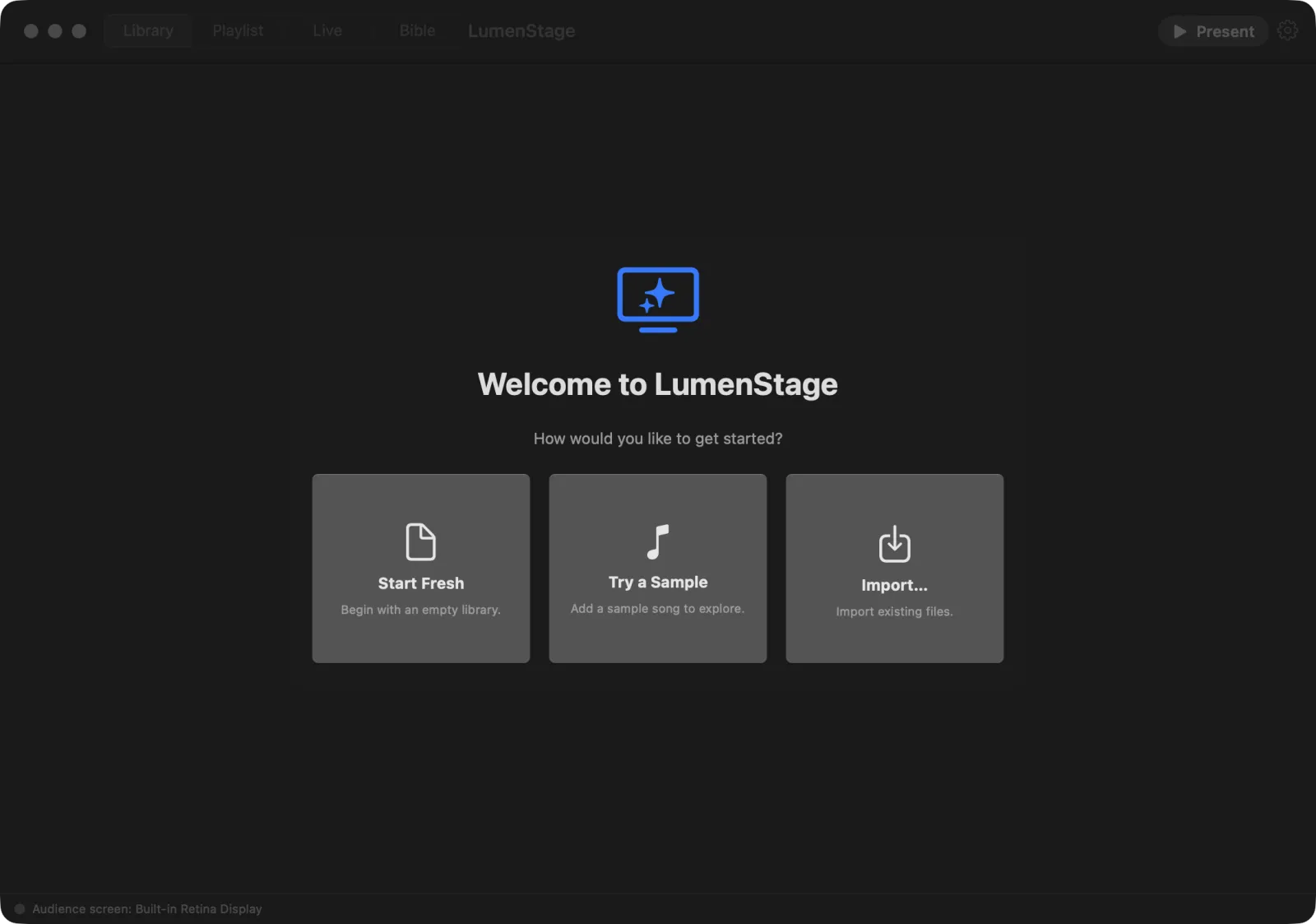
You only see this window once. You can add the sample songs later with Help › Add Sample Songs.
Make your first presentation
While your library is empty, LumenStage shows a start screen.
To make a presentation:
- Type a name in the Title (optional) box, for example “Sunday Welcome”. You can leave it empty and rename it later.
- Press New Presentation, or press Return.
- The editor opens with your first slide, ready to type on.
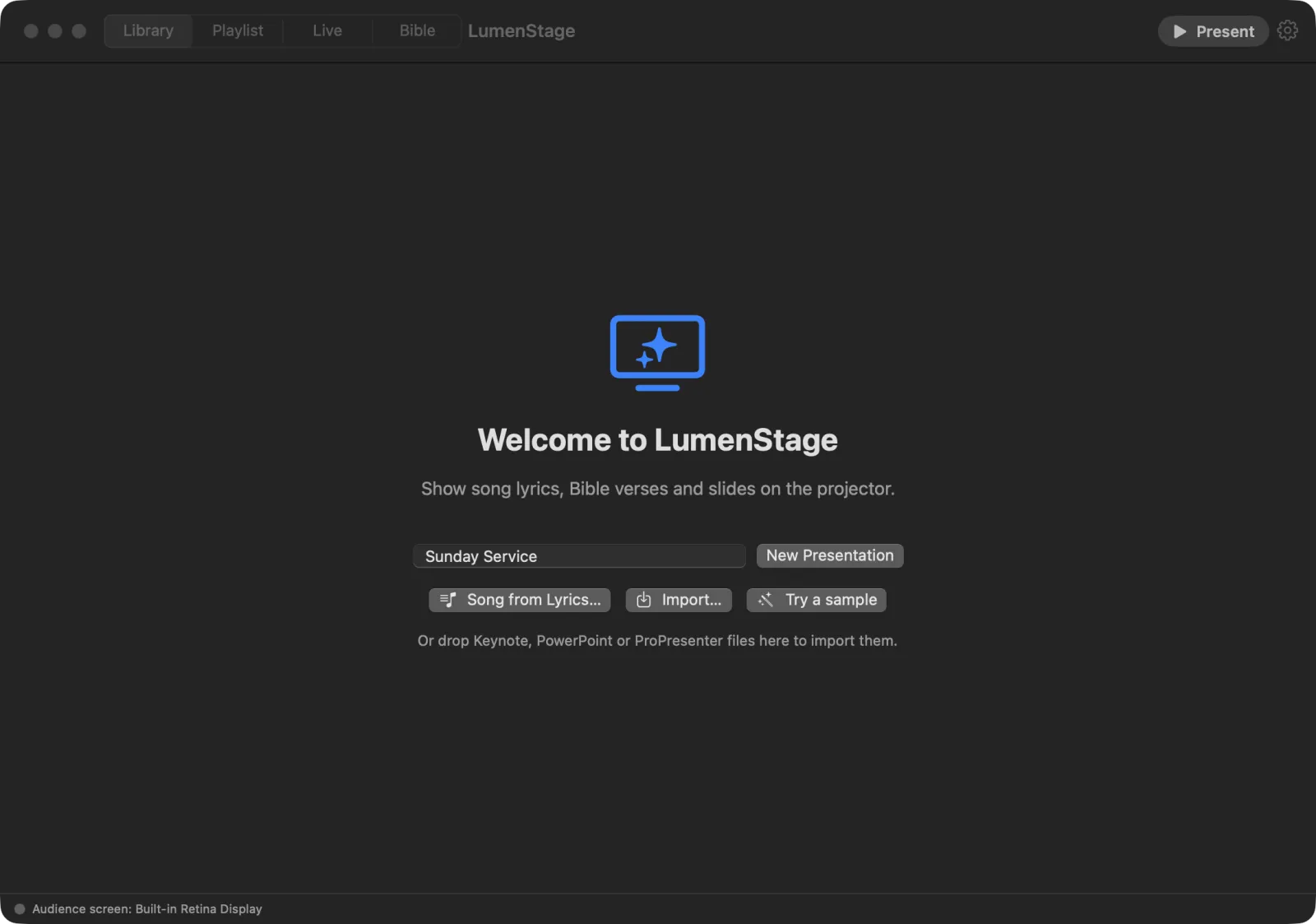
The start screen also has these buttons:
- Song from Lyrics… turns pasted song words into slides. See Songs and lyrics.
- Import… brings in existing files.
- Try a sample adds example content.
You can also drop Keynote, PowerPoint or ProPresenter files onto the start screen to import them.
Once your library has something in it, use File › New Presentation (⌘N) to start another one.
The four screens
Across the top of the window is a switcher with four screens. Click a word to go there.
- Library is where you build presentations. Your library is on the left, the slide in the middle, the slide list along the bottom, and the inspector (settings for the selected slide) on the right.
- Playlist is where you plan a service: the songs, Bible passages and notes in running order. See Playlists.
- Live is where you run the show: what the audience sees, the current and next slide, and the show controls. See Running the show.
- Bible is where you look up and show Bible verses. See Bible verses.
You can also switch screens with View › Layout.
On the right of the top bar is the Present button, which puts the open presentation on the projector, and a gear button that opens Settings (⌘,).
The bar at the bottom of the window tells you which screen the audience sees, for example “Audience screen: Built-in Retina Display”. Click it to open Settings › Outputs. Next to it, All changes saved reminds you that LumenStage saves your work by itself a moment after each change. You never need to press Save.
Tip: Hover the pointer over any button for a moment. A short hint explains what it does and shows its keyboard shortcut.
Help › Getting Started
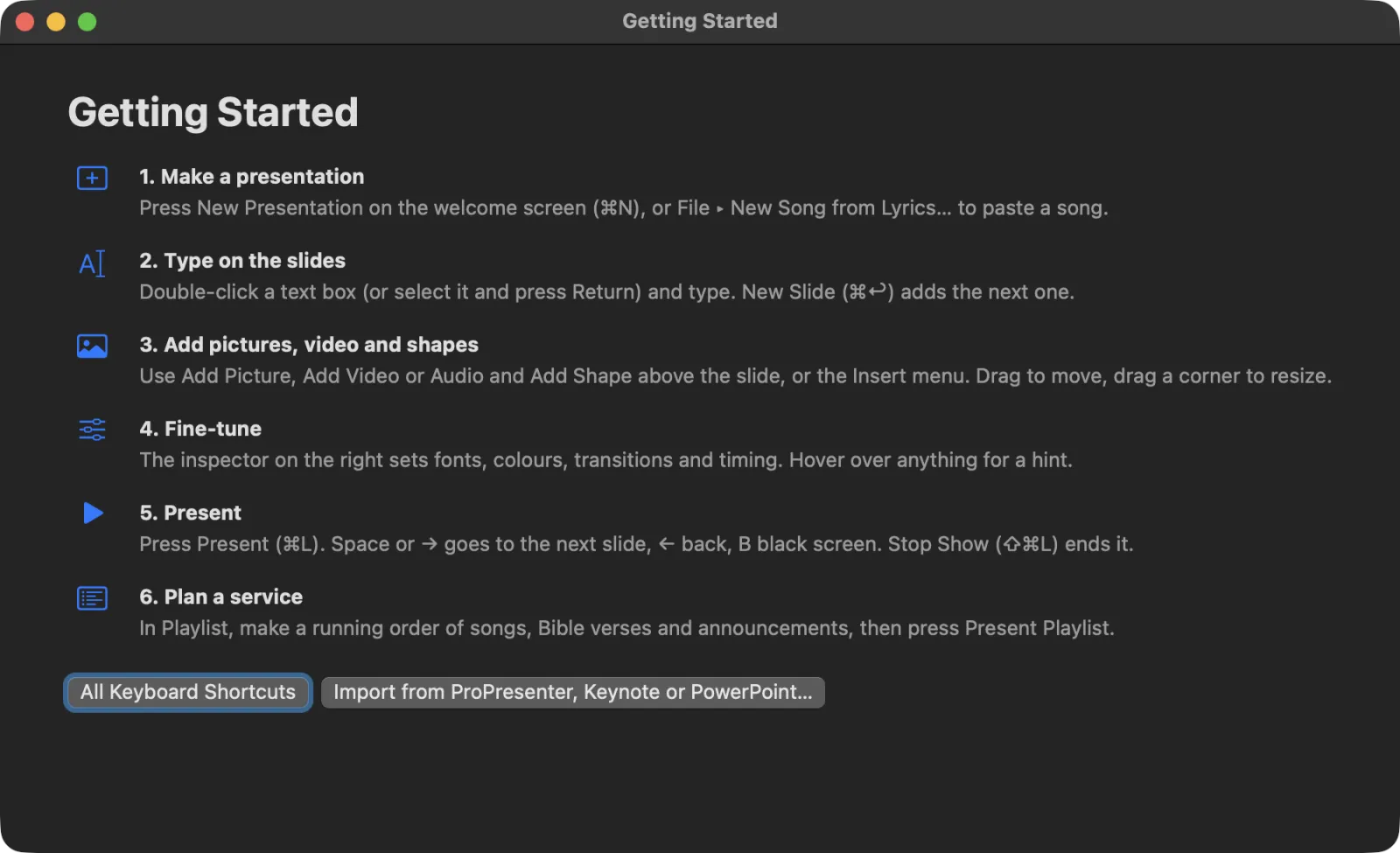
If you forget a step, choose Help › Getting Started. A small window lists the whole job in six steps:
- Make a presentation
- Type on the slides
- Add pictures, video and shapes
- Fine-tune
- Present
- Plan a service
At the bottom are two buttons: All Keyboard Shortcuts and Import from ProPresenter, Keynote or PowerPoint….
Where to go next
- Making slides — type, format and arrange slides.
- Songs and lyrics — make a song from pasted words.
- Running the show — present on Sunday morning.