Bible verses
The Bible screen finds verses by their reference or by their words, and puts them on the projector in one click. Two complete translations come with LumenStage: the King James Version in English and the Russian Синодальный перевод (Synodal translation). When the app runs in Russian or Ukrainian it starts with the Synodal translation, otherwise with the King James Version. You can choose another one in Settings › Bible or add more.
Look up a verse
- Click Bible at the top of the window.
- Make sure Reference is selected in the switch on the left.
- Type a reference in the box, for example
John 3:16. - Press Look Up, or press Return.
- The verses appear in the list, each with its number.
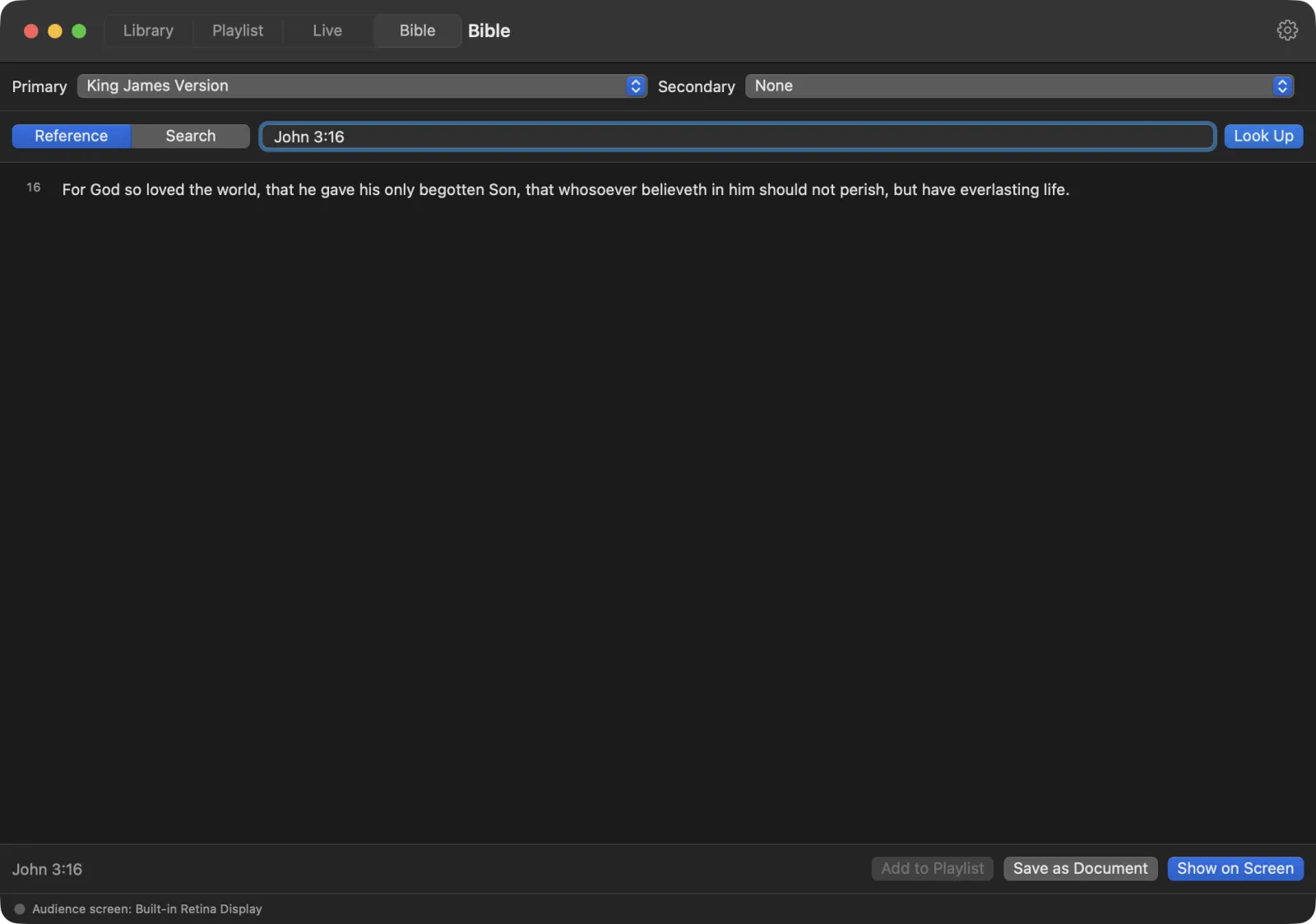
How to type a reference
LumenStage understands most common ways of writing a reference:
- One verse:
John 3:16 - Several verses:
John 3:16-18 - Across chapters:
Matt 5:1-7:29 - A whole chapter:
Psalm 23orPs 23(starts at verse 1) - Short book names:
Gen,Ex,Ps,Isa,Matt,Mk,Lk,Jn,Rom,1 Corand so on. - Numbered books:
1 Samuel 3:10,1 Cor 13:1-7.
Book names also work in the app’s other languages, in full or short: Иоанна 3:16, Ин 3:16 (Russian), Івана 3:16 (Ukrainian), Jean 3:16 (French), Juan 3:16 (Spanish), Johannes 3,16 or Joh 3,16 (German). Accents and capitals don’t matter, and a comma between chapter and verse works as well as a colon. Any book name works with any translation. On the slide, the reference uses the translation’s own book names: «От Иоанна 3:16» in the Russian Synodal, “John 3:16” in the King James Version.
If a reference can’t be found in the chosen translation, the screen says No verses found and asks you to check the book, chapter and verse.
Search the Bible for words
Don’t remember where a verse is? Search for its words.
- Click Search in the switch.
- Type a few words, for example
still waters. - Press Search, or press Return.
- Click a verse in the results to open it. You can also press ↓ to move through the results and Return to open one.
The verse opens in Reference mode, ready to show or add to a playlist.
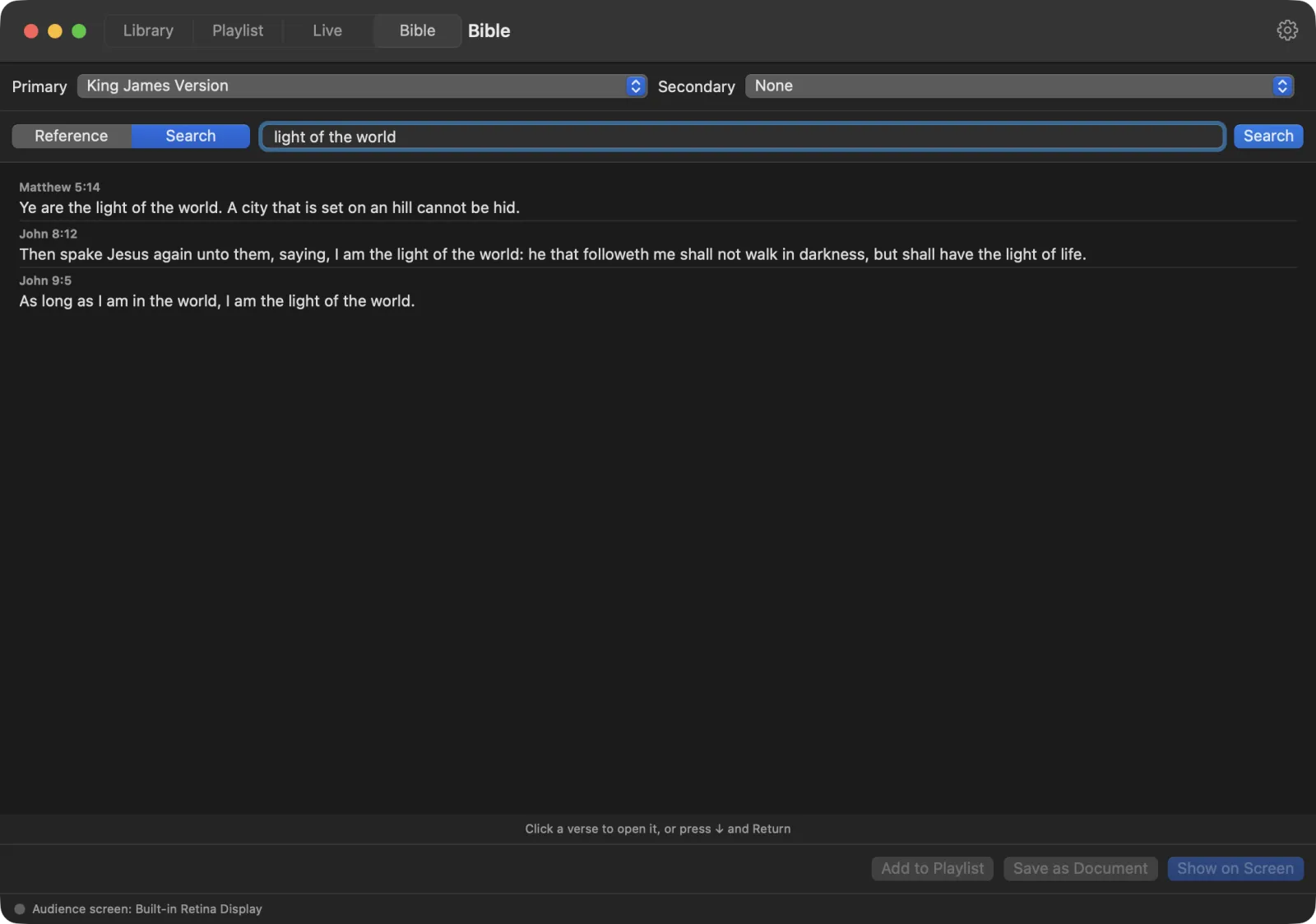
Show verses on the projector
After a look-up, the buttons at the bottom act on the verses in the list.
- Show on Screen (⇧⌘↩) puts the verses on the projector now and opens the Live screen. If the show isn’t on yet, it starts.
- Save as Document saves the verses as slides in the Bible folder of your library, so you can edit or reuse them.
- Add to Playlist adds the passage to the playlist you have open. The button shows the playlist’s name, for example “Add to Sunday 10 am”. If you have no playlist yet, make one first with File › New Playlist.
While the show is on, a small preview at the bottom of the Bible screen shows what the audience sees right now.
Tip: During the show you don’t have to leave the Live screen to show a verse. Type the reference in the box at the bottom of the live controls and press Return. See Running the show.
Two translations side by side
At the top of the Bible screen are two menus:
- Primary — the translation shown on the projector.
- Secondary — a second translation shown under the first, or None.
When a secondary translation is chosen, the list shows both texts next to each other. LumenStage matches the verse numbers between translations, including the different numbering of the Psalms in the Russian Synodal translation.
Verses per slide
By default each verse gets its own slide. To put more verses on each slide:
- Open Settings (⌘,) and click Bible.
- Use the Verses per slide stepper. You can choose from 1 to 10.
This applies to verses you show, save or add to a playlist after the change.
Add another translation
LumenStage can add translations in the Zefania XML format. Many translations are free to download in this format. Check that the one you choose may be shown in church.
- Download the translation as a
.xmlfile. - Open Settings › Bible.
- Press Add Translation… and choose the file.
- The message “Added” followed by the translation’s name confirms it. It now appears in the Installed translations list and in the Primary and Secondary menus.
If the file isn’t a Zefania XML Bible, LumenStage says “That file isn’t a Zefania XML Bible, or it has no verses.”
To remove a translation you added, click the remove button next to it in Installed translations. The two built-in translations can’t be removed.