Running the show
This page is for the person at the computer during the service. It covers starting the show, moving through slides, and the buttons that hide or change what the room sees.
Start the show
- Open a presentation, or select the slide you want to start from.
- Press Present in the top-right corner, or press ⌘L.
- The selected slide appears on the audience screen. A red LIVE sign appears at the top, and the Present button becomes Stop Show.
You can stay in the editor while presenting. The slide on screen is marked LIVE in the slide list, and the bar at the bottom says “Live on” followed by the name of the projector.
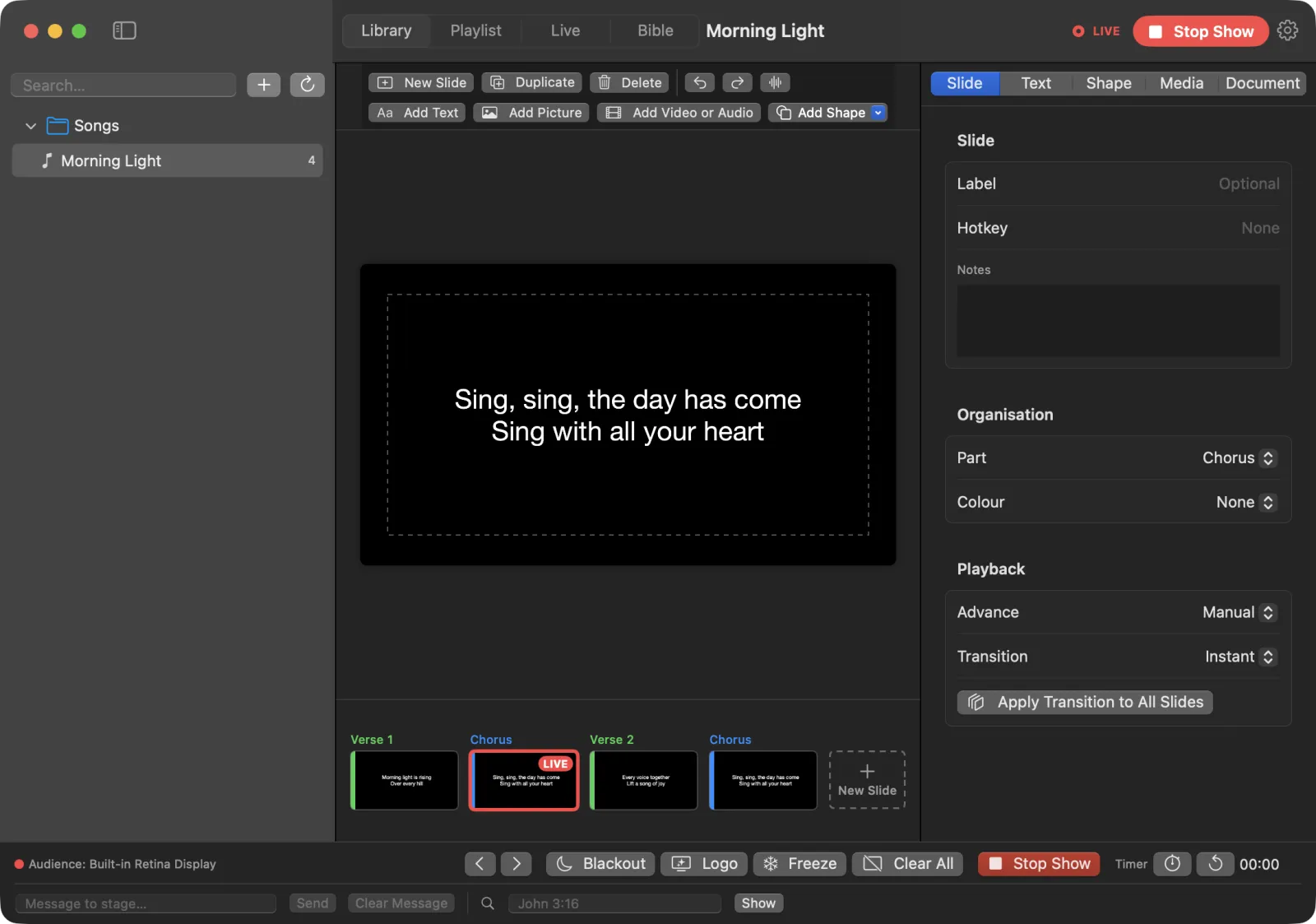
Other ways to start:
- Double-click a slide in the slide list to start the show from that slide.
- Right-click a slide and choose Present from This Slide.
- On the Playlist screen, press Present Playlist.
- On the Bible screen, press Show on Screen.
Tip: While the show is on, clicking any slide in the slide list puts it on the projector straight away. Edit slides before the service, not during it.
The Live screen
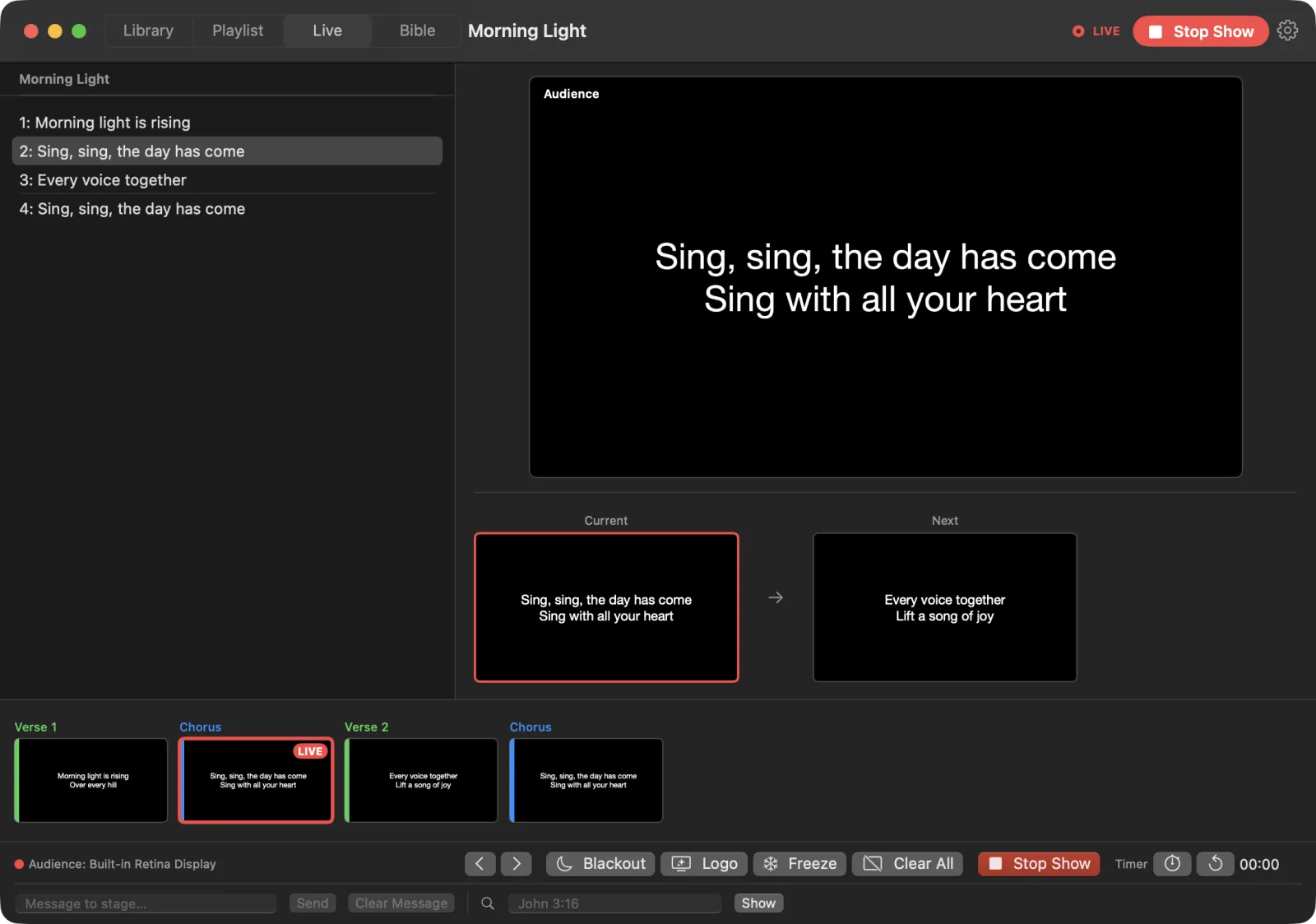
Click Live at the top of the window for the full view.
- Audience (the big picture) shows exactly what the room sees.
- Current and Next show the slide on screen and the one after it.
- The list on the left shows your playlist, or the slides of the open presentation when no playlist is running.
- The slide list along the bottom shows every slide. Click one to put it on screen.
- The live controls are at the bottom of the window.
Move between slides
| To do this | Press |
|---|---|
| Next slide | Space, →, ↓ or Page Down |
| Previous slide | ←, ↑ or Page Up |
| Slide 1 to 9 | the number key 1 to 9 |
| A slide with a hotkey | its letter |
You can also use the arrow buttons in the live controls, or Live › Next Slide (⌥⌘→) and Live › Previous Slide (⌥⌘←).
These keys work on the Live screen, and on any screen while the show is on. They don’t work while you are typing in a box. If you are typing in the message or Bible box, the bar says “Typing — press Esc to control the show”. Press Esc, and the keys control the show again.
Hide the slide: Blackout, Logo, Freeze, Clear All
These buttons are in the live controls and in the Live menu.
- Blackout (B, or ⌥⌘B) turns the projector black. Press it again to bring the slide back.
- Logo (L, or ⌥⌘L) shows your church logo instead of the slide. Press it again to go back. You must choose the logo picture first in Settings › Outputs. If you haven’t, LumenStage says “No logo chosen yet — pick a picture in Settings › Outputs”.
- Freeze (F, or ⌥⌘F) keeps the projector on the current picture while you move around in LumenStage. The room doesn’t see your slide changes until you unfreeze.
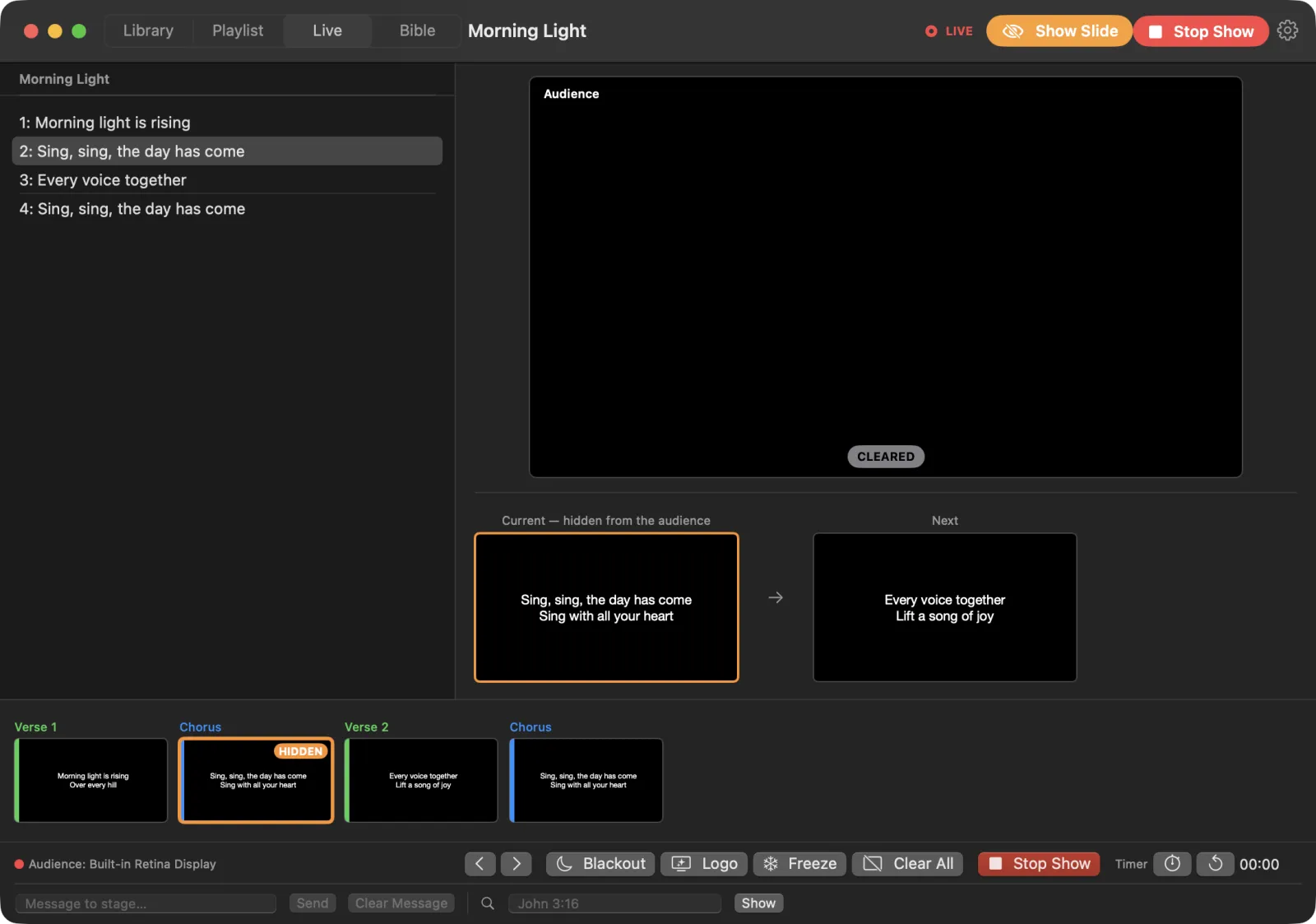
- Clear All (C, or ⌥⌘C) takes the text and pictures off the projector. The next slide you pick shows as usual.
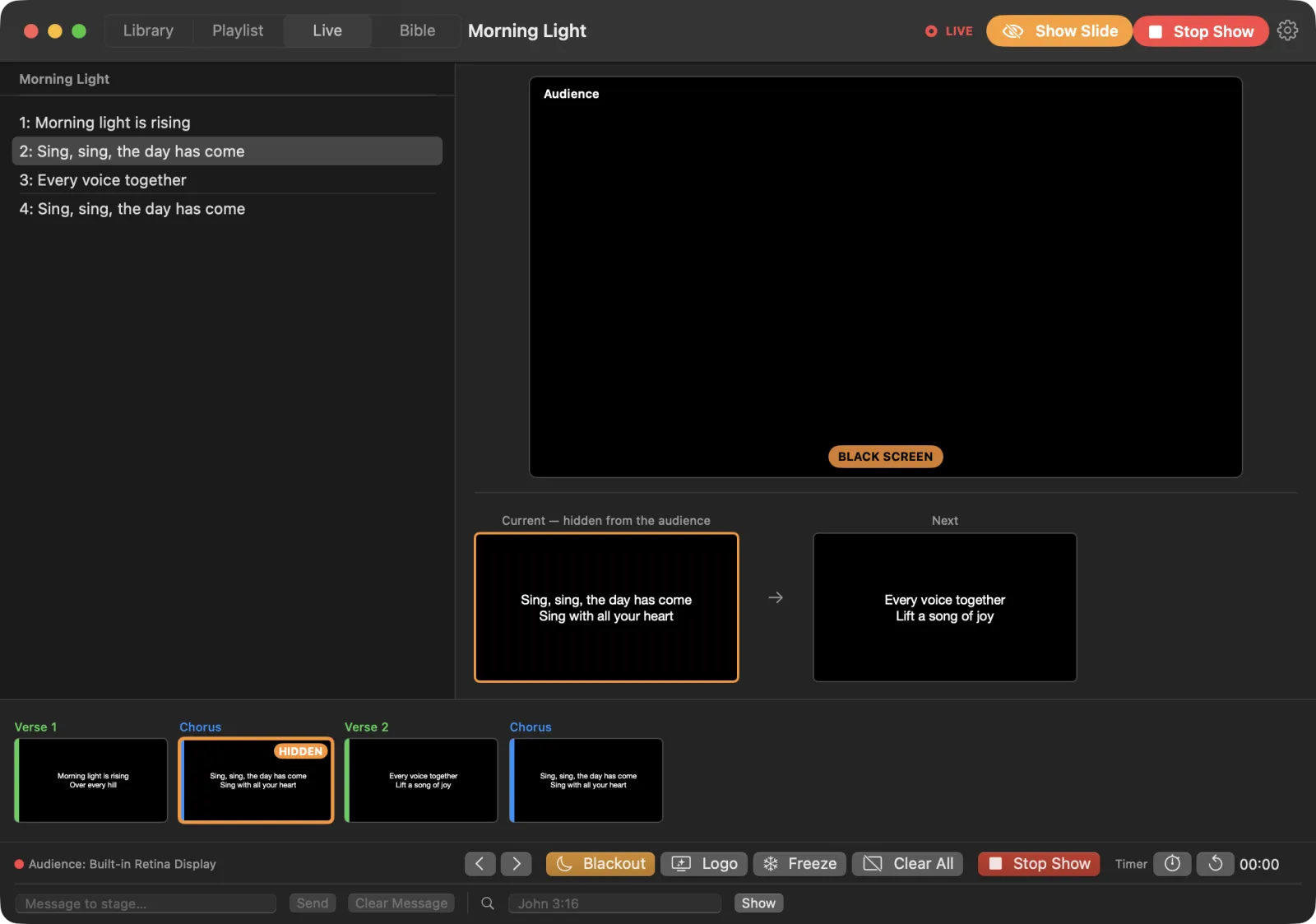
While the slide is hidden, the Current preview says “Current — hidden from the audience”, and an orange Show Slide button appears at the top of the window. Hover over it to see why the slide is hidden, for example “Screen is black”. Click Show Slide to put the slide back on the projector.
Show a Bible verse during the show
You don’t need to leave the Live screen to show a verse.
- Click the Bible box in the bottom row of the live controls (it shows “John 3:16” in grey).
- Type a reference, for example
Romans 8:28. - Press Return, or press Show.
The verse goes on the projector. When you press → after it, LumenStage goes back to the song you were in.
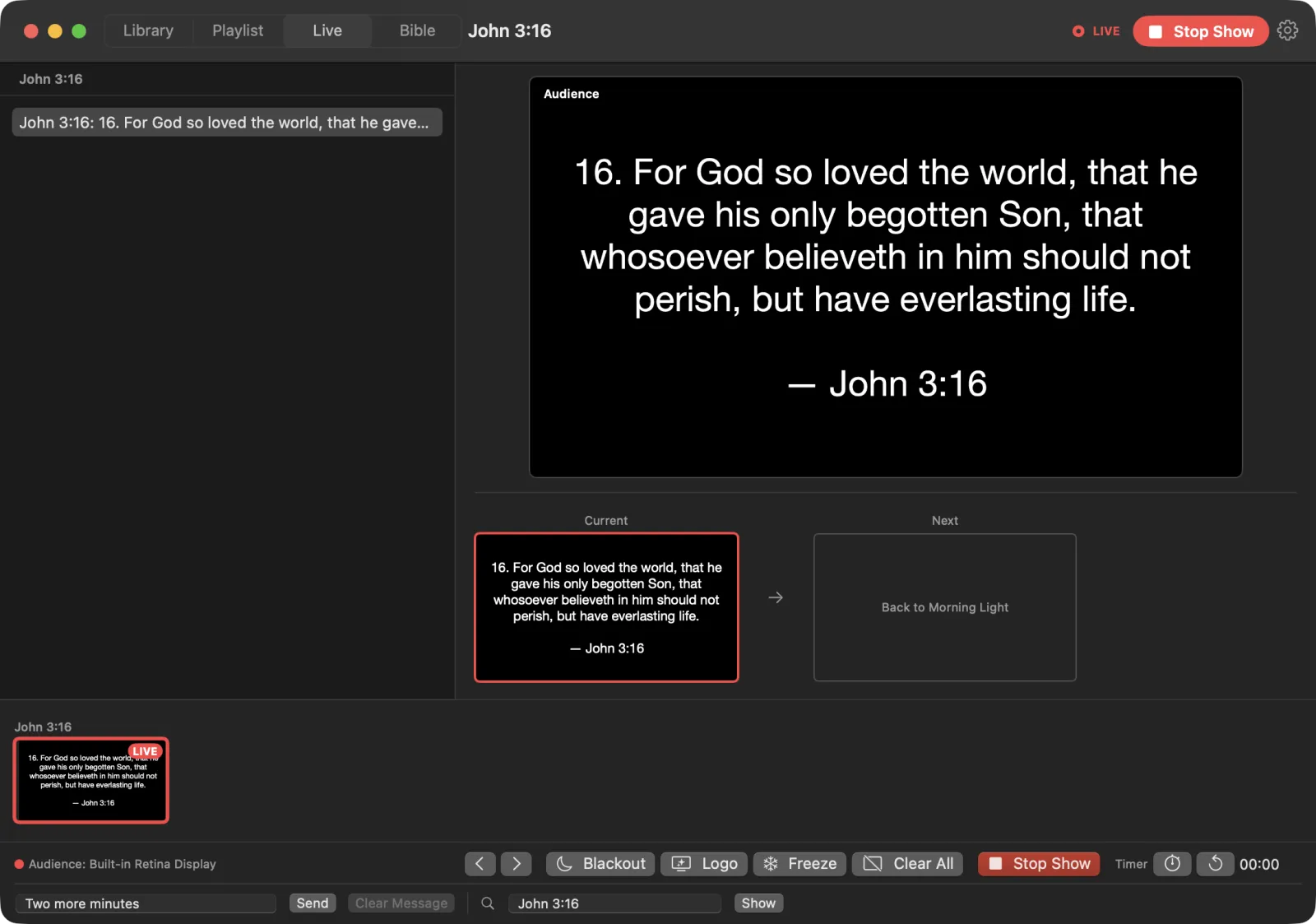
For the full Bible screen, choose Live › Show Bible Verse… (⇧⌘B).
Test pattern
To check the projector’s focus and colours before the service, choose Live › Test Pattern and pick SMPTE Colour Bars, Alignment Grid, Solid White or RGB Stripes. This works even when the show isn’t on. Choose a test pattern again, or press Show Slide, to remove it.
Stop the show
Press Stop Show in the top-right corner or in the live controls, or press ⇧⌘L.
LumenStage takes the presentation off the projector and the LIVE sign disappears.
Tip: Esc does not stop the show. On the Live screen, pressing Esc only reminds you: “The show is still on. Press Stop Show (⇧⌘L) to end it.” This prevents a stray key press from blacking out the projector.
If the audience screen stays dark, see Troubleshooting.