Songs and lyrics
Most of what a church shows is song lyrics. LumenStage can turn the words of a song into slides in one step, and keeps each slide tagged with its part of the song, such as Verse 1 or Chorus.
Make a song from lyrics
- Choose File › New Song from Lyrics… (⌥⌘N). You can also press Song from Lyrics… on the start screen, or Add › New Song from Lyrics… in the library.
- Type the name in Song title.
- Paste the whole song into Words.
- Check the line under the words. It tells you what you will get, for example “6 slides in 3 parts: Verse 1, Chorus, Verse 2”.
- Press Create Song. The song opens in the editor and is saved in the Songs folder of your library.
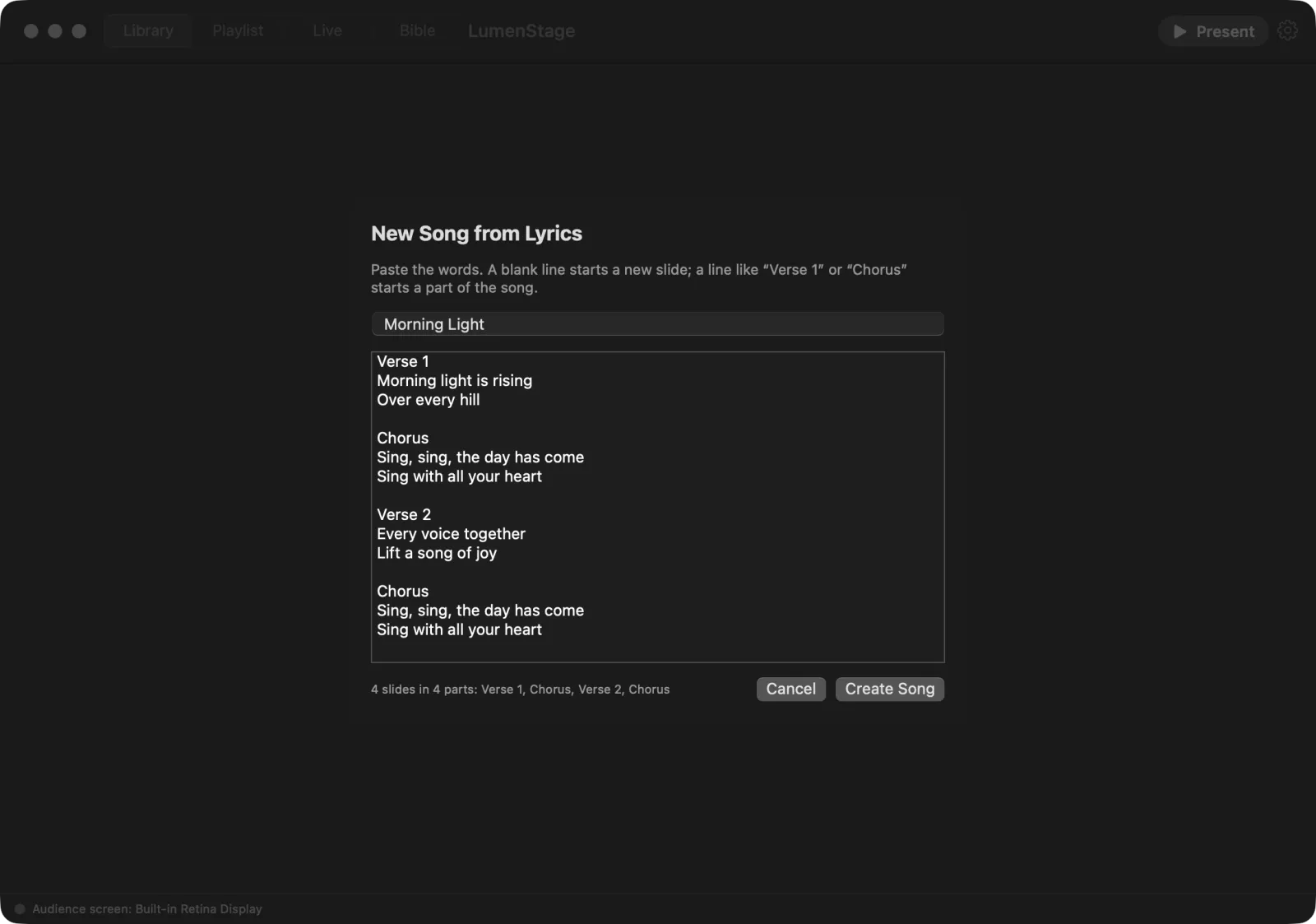
How the words become slides
- A blank line starts a new slide. Put two to four lines together for each slide, then leave an empty line.
- A heading line starts a new part. A line such as
Verse 1,Chorus,Bridge,Pre-Chorus,Tag,IntroorOutrois not shown on a slide. It names the part for the slides that follow. A colon at the end, as inChorus:, is fine. - Headings work the same way in the app’s other languages:
Куплет 1,Припев(Russian),Приспів(Ukrainian),Couplet 2,Refrain(French),Estrofa 1,Coro,Estribillo(Spanish),Strophe 1,Refrain(German). - Verses, choruses and bridges get their own colour in the slide list, so you can tell the parts apart at a glance.
- Any word in square brackets is a heading, for any other name:
[Ending],[Spoken word]. - Words before the first heading go into a part called Verse 1.
For example:
Verse 1
Morning light is rising
Over every hill

Chorus
Sing, sing, the day has come
Sing with all your heart
This gives two slides: one in the part Verse 1 and one in the part Chorus.
Tip: Only a line that is just the part’s name, perhaps with a number (
Verse 2,Chorus x2), counts as a heading. A lyric such as “Chorus of angels” stays on its slide.
The part name is shown above each slide in the slide list.
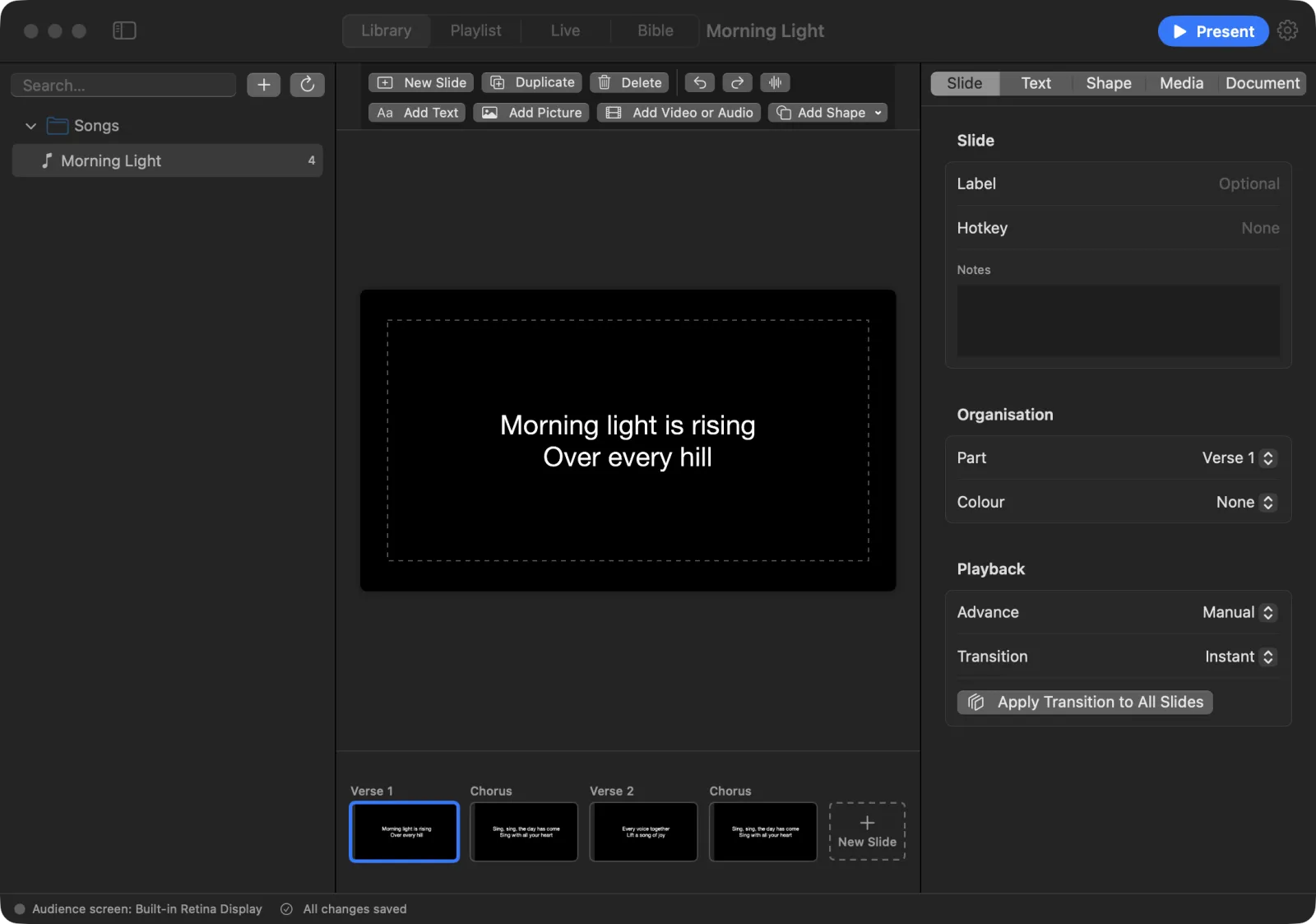
Song parts
Open the Document tab in the inspector and scroll to Song Parts. Each part has:
- Part colour — the colour of this part’s slides in the slide list.
- Part name — for example Verse 1 or Chorus.
- Delete Part — removes the part. Its slides stay.
To add a part, press Add Part or choose Document › New Part (⌥⌘G).
To put a slide in a part, select the slide and choose the part under Part on the Slide tab. You can also right-click the slide and use Part.
Play orders
A play order lists the parts of a song in the order you sing them, for example Verse, Chorus, Verse, Chorus. It is useful as a note for the band.
- On the Document tab, find Play Orders.
- Press Add Play Order. The new play order lists all the song’s parts. (The button works once the song has at least one part.)
- Type a name in Play order name, for example “Sunday” or “Short”.
- Click the star to make it the Default play order.
- Under Parts in play order, drag the parts into the order you want.
To remove one, press Delete Play Order. The slides stay.
Tip: During the show, LumenStage goes through the slides in the order of the slide list. To change what comes next on screen, reorder the slides themselves.
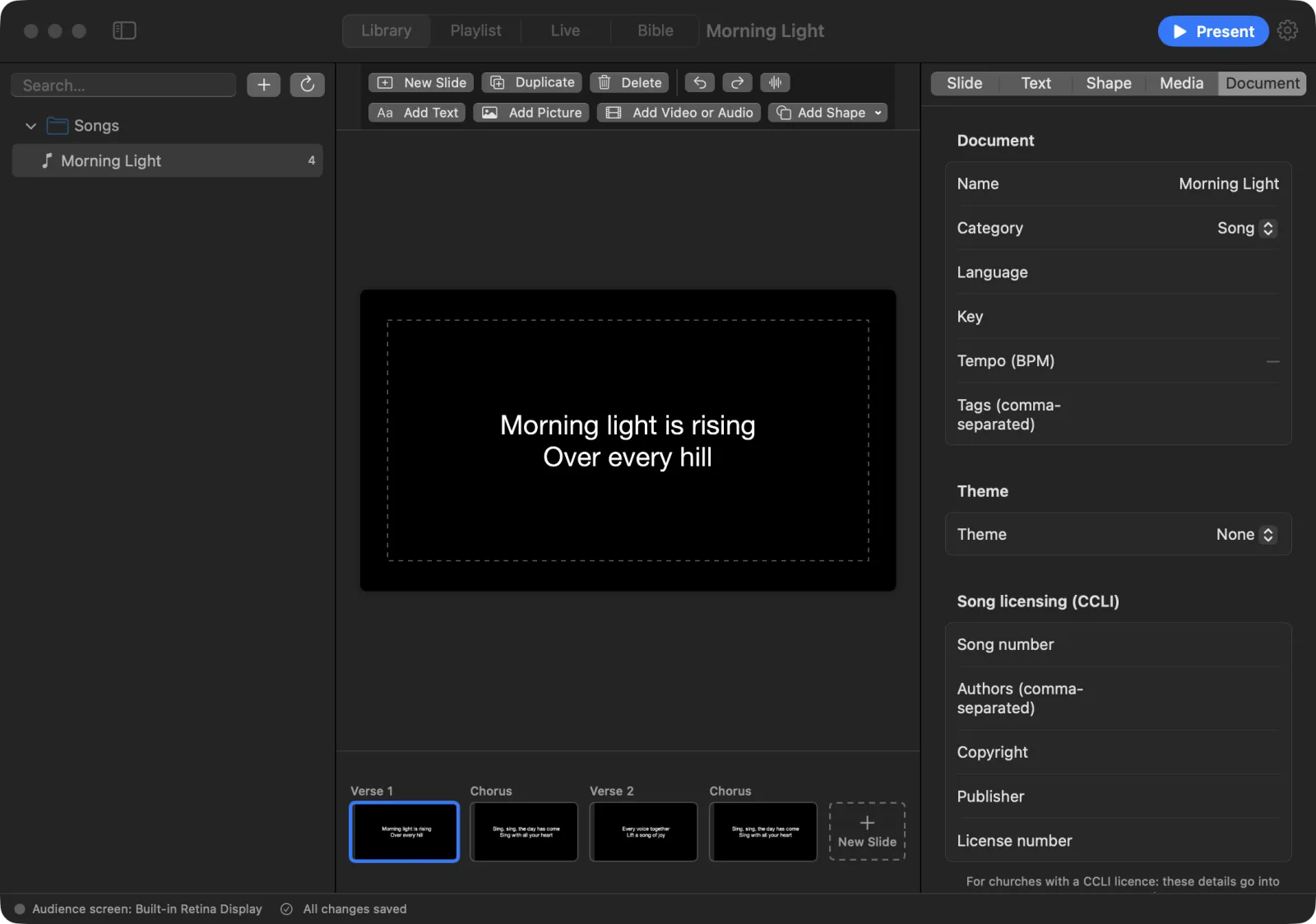
Give every slide the same style
- Select a text box on one slide.
- On the Text tab, set the font, size, colour, layout and effects.
- Press Apply Style to All Slides.
Every slide now has the same text style. The words stay as they were. A message tells you how many other slides changed. If you change your mind, press ⌘Z.
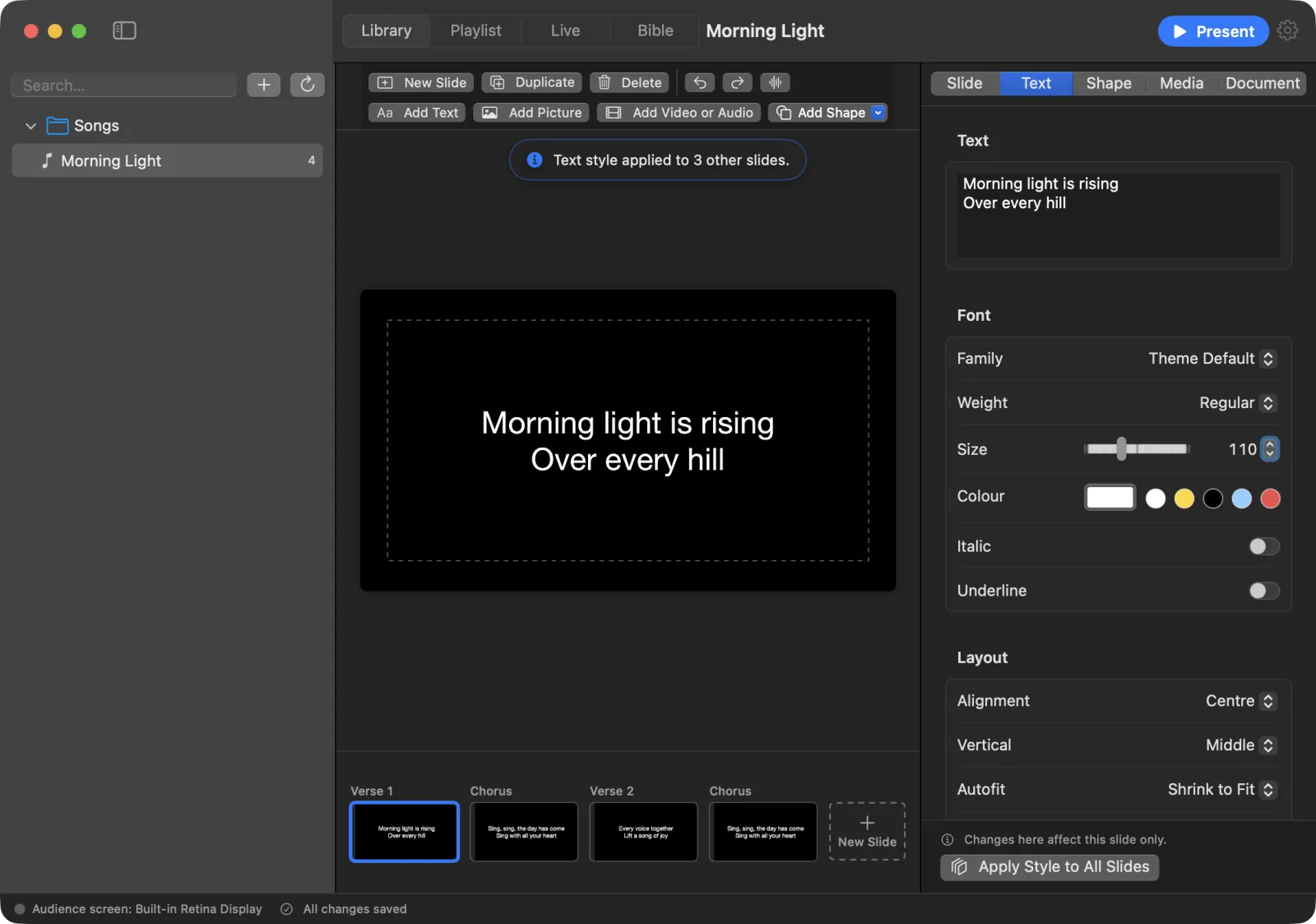
Song details and CCLI licensing
On the Document tab you can note Key and Tempo (BPM) for the band. If your church has a CCLI licence, fill in the Song licensing (CCLI) section:
- Song number
- Authors (comma-separated)
- Copyright
- Publisher
- License number
These details go into the song usage report. To save the report, choose File › Export CCLI Report…. You get a CSV file that opens in Numbers or Excel. LumenStage counts a song as used when it stays on the audience screen for at least five seconds, once per show. Only presentations whose Category is Song are counted.
Slide hotkeys
A hotkey jumps straight to a slide during the show.
- Select the slide.
- On the Slide tab, type a letter in Hotkey.
- During the show, press that letter to show the slide.
Slides with a hotkey also appear as buttons in the Quick: row of the live controls.
Tip: The keys B, L, C and F always control the screen during the show (Blackout, Logo, Clear All and Freeze). Choose other letters for hotkeys, for example R for the refrain.