Keyboard shortcuts
Keyboard shortcuts save time, especially during the service. You can see the main ones inside the app at any time with Help › Keyboard Shortcuts.
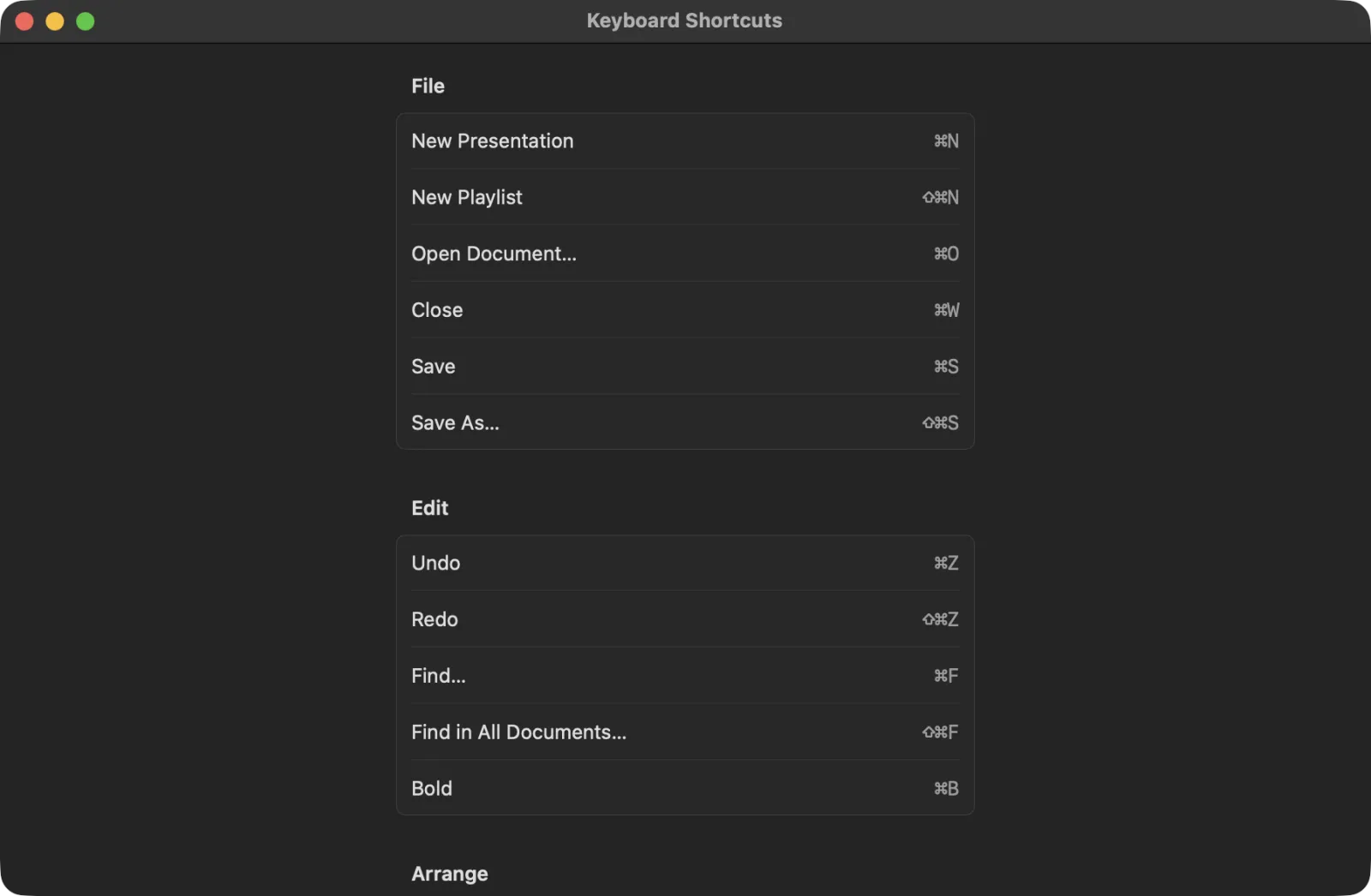
In the tables, ⌘ is the Command key, ⌥ is Option, ⇧ is Shift, ⌃ is Control, ↩ is Return and ⌫ is Delete.
During the show
These single keys work on the Live screen, and on every screen while the show is on. They don’t work while you are typing in a box. Press Esc to leave a box first.
| Key | What it does |
|---|---|
| Space, →, ↓ or Page Down | Next slide |
| ←, ↑ or Page Up | Previous slide |
| B | Blackout (press again to bring the slide back) |
| L | Logo (press again to go back) |
| F | Freeze (press again to unfreeze) |
| C | Clear All |
| 1 – 9 | Jump to slide 1 to 9 |
| A letter you set as a slide’s Hotkey | Jump to that slide |
| Esc | Leave the message or Bible box, so the keys control the show again |
B, L, F and C keep working when your keyboard is set to another language, such as Russian or Ukrainian.
The same actions are in the Live menu, with shortcuts that work anywhere, even while you type:
| Shortcut | Menu command |
|---|---|
| ⌘L | Live › Present |
| ⇧⌘L | Live › Stop Show |
| ⌥⌘→ | Live › Next Slide |
| ⌥⌘← | Live › Previous Slide |
| ⌥⌘B | Live › Blackout |
| ⌥⌘L | Live › Logo |
| ⌥⌘F | Live › Freeze |
| ⌥⌘C | Live › Clear All |
| ⇧⌘B | Live › Show Bible Verse… |
File
| Shortcut | Menu command |
|---|---|
| ⌘N | File › New Presentation |
| ⌥⌘N | File › New Song from Lyrics… |
| ⇧⌘N | File › New Playlist |
| ⌘O | File › Open Document… |
| ⌘W | File › Close |
| ⌘S | File › Save |
| ⇧⌘S | File › Save As… |
LumenStage saves your changes by itself, so you rarely need ⌘S.
Edit
| Shortcut | Menu command |
|---|---|
| ⌘Z | Edit › Undo |
| ⇧⌘Z | Edit › Redo |
| ⌘X | Edit › Cut |
| ⌘C | Edit › Copy |
| ⌘V | Edit › Paste |
| ⌘A | Edit › Select All |
| ⌘F | Edit › Find… (in the open presentation) |
| ⇧⌘F | Edit › Find in All Documents… |
When you are not typing in a text box, Cut, Copy, Paste and Select All work on the selected slides. You can copy slides from one presentation and paste them into another.
Slides and documents
| Shortcut | Menu command |
|---|---|
| ⌘↩ | Document › Add Slide |
| ⌘⌫ | Document › Delete Slide |
| ⌘D | Document › Duplicate Slide |
| ⌘[ | Document › Move Slide Left |
| ⌘] | Document › Move Slide Right |
| ⌥⌘G | Document › New Part |
| ⌘I | Document › Document Properties |
Insert and arrange
| Shortcut | Menu command |
|---|---|
| ⇧⌘T | Insert › Text Box |
| ⇧⌘P | Insert › Picture… |
| ⇧⌘M | Insert › Video or Audio… |
| ⌘B | Insert › Bold |
| ⌥⇧⌘F | Arrange › Bring to Front |
| ⌥⇧⌘B | Arrange › Send to Back |
To start typing in a selected text box, press Return.
View
| Shortcut | Menu command |
|---|---|
| ⌥⌘I | View › Toggle Inspector |
| ⌃⌘S | View › Toggle Library Sidebar |
| ⌥⌘T | View › Audio Timeline |
| ⌘+ | View › Zoom In |
| ⌘- | View › Zoom Out |
| ⌘0 | View › Actual Size |
Other
| Shortcut | What it does |
|---|---|
| ⌘, | Open Settings |
| ↩ | Look Up or Search on the Bible screen |
| ⇧⌘↩ | Show on Screen on the Bible screen |
| Esc | Close the New Song from Lyrics window without making a song |
Tip: Hover over any button in LumenStage. Its hint shows the keyboard shortcut, if it has one.